HDD vs SATA SSD vs NVMe: Which Storage Should You Buy?
 Tech Guru
Quick Answer
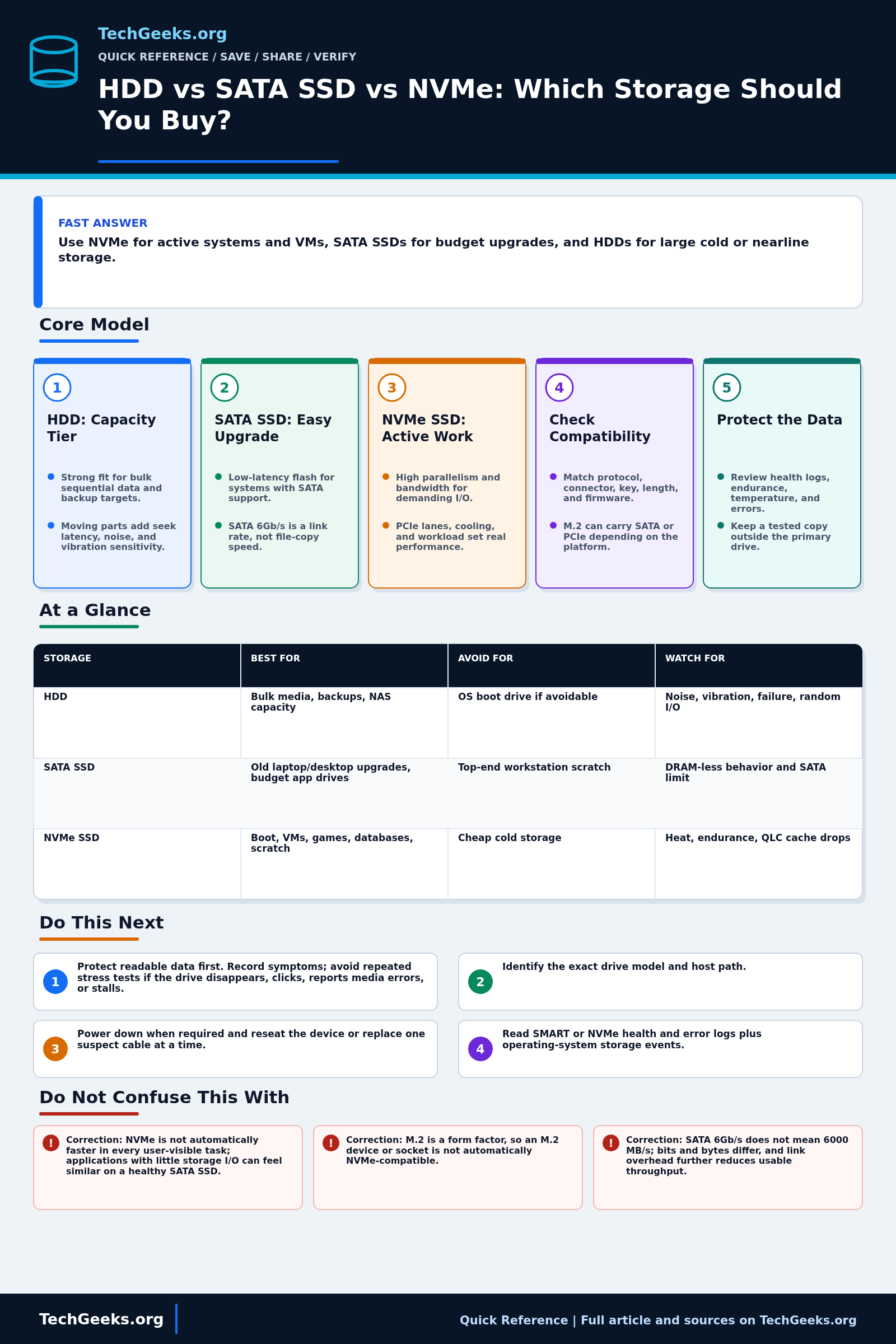
Use an SSD for the operating system and active work: NVMe when the computer supports it, or a SATA SSD for a compatible older system. Use HDDs for bulk capacity when latency matters less. Check the exact drive protocol, form factor, host slot, sustained-write behavior, and endurance before buying. Keep another recoverable copy of important data, regardless of drive type.
Start Here: The Beginner Foundation
An HDD stores data magnetically on spinning platters, while a SATA SSD and an NVMe SSD normally store data in NAND flash. That media difference matters more than a simple headline speed: a hard drive must move a head to the right location, so small scattered reads and writes have much higher latency than they do on an SSD. HDDs remain useful when a large amount of capacity is needed at a controlled cost, especially for media libraries, backup targets, and other workloads dominated by large sequential transfers. They are less comfortable for an operating system, applications, or virtual machines that constantly touch many small files.
SATA and NVMe describe different ways for a host to communicate with storage; M.2, 2.5-inch, U.2, and add-in card describe physical forms. A typical 2.5-inch SATA SSD is a straightforward upgrade for a computer with a SATA data connector and power connector. SATA 6Gb/s is the raw link rate, not a promise that a drive will transfer files at 6 gigabits every second. Client NVMe SSDs usually communicate over PCIe and can offer more bandwidth, lower protocol overhead, and more parallel I/O than SATA, but the drive, slot, available PCIe lanes, firmware, cooling, and workload all affect the result.
Choose a drive by matching the complete workload rather than buying the largest advertised sequential number. Check capacity, physical size, connector, supported protocol, PCIe generation and lane count where relevant, expected sustained writes, warranty, write-endurance rating, power use, and cooling. An HDD can be the sensible capacity tier beside an SSD boot drive, and a SATA SSD can be a better purchase than NVMe when the computer has no compatible PCIe storage slot. No drive type removes the need for another recoverable copy of important data.
The Fast Comparison
| Storage | Best for | Avoid for | Watch for |
|---|---|---|---|
| HDD | Bulk media, backups, NAS capacity | OS boot drive if avoidable | Noise, vibration, failure, random I/O |
| SATA SSD | Old laptop/desktop upgrades, budget app drives | Top-end workstation scratch | DRAM-less behavior and SATA limit |
| NVMe SSD | Boot, VMs, games, databases, scratch | Cheap cold storage | Heat, write endurance, and slower sustained writes after the fast cache fills |
Advanced Notes and Design Boundaries
Two drives in the same category can behave differently. Compare their media, controller, firmware, cache, and sustained-write behavior, then account for free space, host lanes, temperature, power settings, filesystem, and the workload used to measure them.
- SATA 6Gb/s is a signaling rate. Protocol encoding and command overhead reduce usable throughput, and current SATA SSDs commonly peak near 500-560 MB/s for large sequential transfers; small-file and low-queue-depth results can be much lower.
- NVMe is a storage protocol, not a physical size. The current specification family supports multiple transports and form factors; a client M.2 NVMe device usually uses PCIe, while an M.2 slot or module may instead support SATA, PCIe, both, or neither for storage depending on the platform.
- Peak sequential bandwidth is not a proxy for every workload. Latency, random IOPS, queue depth, block size, read/write mix, filesystem behavior, and application concurrency determine whether the gap between SATA and NVMe is noticeable.
- NAND type, controller, firmware, spare area, DRAM or host-memory use, and pseudo-SLC cache design affect sustained SSD behavior. A fast burst result can fall sharply after cache exhaustion, especially on a nearly full value-oriented drive.
- Compare SSD endurance using the vendor's terabytes written (TBW) or drive writes per day (DWPD) rating together with the warranty and intended workload. For HDDs, verify workload class and recording technology when repeated rewrites, RAID rebuilds, or sustained ingest matter; model-specific documentation is more reliable than assumptions based on brand or capacity.
Troubleshooting Workflow
Protect readable data before diagnosing performance. If a drive drops offline, clicks, accumulates media errors, or stalls I/O, collect health and event records once and prioritize a controlled copy or professional recovery decision instead of repeatedly stressing it with benchmarks.
- Back up any readable important data, record the exact symptom and when it began, and avoid repeated stress tests if the drive is disappearing, clicking, reporting media errors, or causing I/O timeouts.
- Identify the exact drive model and host path, then verify form factor, keying, SATA versus PCIe/NVMe support, required cables, PCIe generation and lanes, BIOS or UEFI support, and motherboard lane-sharing rules.
- Power down when required and reseat the device or replace one suspect cable at a time; confirm that the drive is detected in firmware and that the negotiated SATA or PCIe link matches the supported path.
- Read SMART or NVMe health and error logs plus operating-system storage events. Check media errors, interface errors, unsafe shutdowns, available spare, temperature, and firmware advisories in context rather than treating one generic health percentage as a diagnosis.
- Run a non-destructive, workload-relevant benchmark only after data is protected. Record free space, power mode, queue depth, transfer size, cache state, temperature, enclosure interface, and whether thermal throttling or cache exhaustion appears during a sustained test.
- Compare results with the specific vendor data sheet and a known-good port, cable, enclosure, or system. Replace a failing drive, correct the bottleneck, or assign the drive to a more suitable workload, then restore data and verify it rather than continuing to trust an unexplained intermittent fault.
Evidence and Acceptance Checks
The interface and endurance explanations are documentation-backed by NVM Express, SATA-IO, and SNIA material. Backblaze fleet data and independent SSD reviews add useful failure and benchmark context, but TechGeeks did not benchmark, endurance-test, thermally throttle, or fail any drive for this draft. No throughput, latency, lifespan, or reliability number is presented as an original result.
- Compatibility acceptance: the exact host manual confirms connector, protocol, module length, PCIe generation and lanes, boot support, power, and any ports disabled by lane sharing.
- Workload acceptance: usable capacity covers current data, growth, snapshots or overprovisioning, and the vendor's sustained-write and endurance specifications fit the intended duty cycle.
- Performance acceptance: after backup, a repeatable representative test records data set size, free space, cache state, queue depth, temperature, power mode, and the full enclosure or adapter path.
- Recovery acceptance: another copy restores successfully, health and error logs show no unexplained deterioration, and a replacement process exists before the drive becomes a single point of failure.
Security, Privacy, Disposal, and Recovery Boundaries
Replacing a drive does not erase the old one, and deleting files or formatting a volume may leave recoverable data. Use current organization and vendor sanitization procedures appropriate to the media, encryption state, ownership, and disposal contract; obtain legal or records guidance where retention, litigation hold, regulated data, or warranty return applies. SMART logs and filenames used in diagnostics can expose identity and workload details, so redact them before posting publicly.
Do not attempt firmware updates, secure erase, filesystem repair, RAID rebuild experiments, or heavy benchmarks on the only readable copy. For an unstable drive, decide whether to clone, restore from backup, or engage recovery specialists before powering it repeatedly. After migration, verify file hashes or application-level data, bootability where relevant, backup jobs, encryption, and the independent restore path before wiping or returning the source drive.
What This Does Not Mean
- Correction: NVMe is not automatically faster in every user-visible task; applications with little storage I/O can feel similar on a healthy SATA SSD.
- Correction: M.2 is a form factor, so an M.2 device or socket is not automatically NVMe-compatible.
- Correction: SATA 6Gb/s does not mean 6000 MB/s; bits and bytes differ, and link overhead further reduces usable throughput.
- Correction: SSDs are not permanent and HDDs are not inherently archival backups; either can fail, and retention depends on the complete storage and recovery process.
Protocol ceilings do not prove application speed, one review sample does not characterize every firmware or capacity, and Backblaze's cloud fleet does not establish a failure rate for a consumer PC or NAS model. A healthy SMART or NVMe summary also cannot predict every controller or electronic failure. Only exact-model documentation, workload-relevant measurements, and a tested recovery design support a purchase decision.
Real-World Use Cases
- Use NVMe as the primary boot/application drive in new builds.
- Use HDDs for large media and backup targets.
- Use SATA SSDs where M.2 slots are unavailable.
- Check endurance and warranty for write-heavy workloads.
Failure Patterns to Recognize
- QLC NVMe slows during sustained writes after cache fills.
- HDD causes slow boot and app launch.
- External enclosure bottlenecks an NVMe drive.
- Thermal throttling reduces performance.
Common Mistakes
- Buying the cheapest NVMe and assuming it is always fastest.
- Storing the only backup on an SSD in the same PC.
- Ignoring drive temperature.
- Using SMR HDDs for workloads that rewrite constantly.
Quick Checklist
- Define workload.
- Check interface and form factor.
- Check capacity and endurance.
- Plan backup.
- Monitor SMART/health.
Common Questions
Useful Gear And Buyer Notes
Affiliate disclosure: As an Amazon Associate, TechGeeks may earn from qualifying purchases. The product links below are buying references, not a requirement to buy a specific brand or seller. Verify compatibility, seller quality, warranty, and current specs before ordering.
Search listings hide important capacity-specific differences. Verify the exact model suffix for NAND type, controller, DRAM or host-memory behavior, rated sustained performance, TBW or workload rating, warranty, heatsink clearance, sector-format requirements, and whether an HDD uses recording technology suitable for repeated rewrites.
- Amazon search: 2TB NVMe SSD
- Amazon search: 2TB SATA SSD
- Amazon search: NAS hard drive 12TB
- Amazon search: M.2 NVMe heatsink
Related TechGeeks Reading
- NAS vs DAS vs Mini PC Storage helps place the drive inside a complete storage design.
- RAID vs ZFS vs Snapshots vs Sync vs Backup separates availability features from recoverable copies.
- Why 2026 Is a Bad Time to Buy a NAS adds current market and buying context without changing the workload criteria here.
Read the Exact Model's Specifications
A protocol revision does not establish a drive's speed or reliability. Match the data sheet, warranty, endurance rating, recording technology, and motherboard support to the exact capacity and model revision. A review of another capacity or Backblaze's fleet results cannot replace that check or a tested backup.
References
- SNIA: Solid State Storage Form Factors
- Backblaze: Drive Stats data
- Backblaze: 2025 Drive Stats report
- SATA-IO: SATA Naming Guidelines
- NVM Express: Current NVMe Specifications
- NVM Express: Controllers, Media, and SSD Form Factors
- SNIA: Endurance of NVMe, SAS, and SATA SSDs
- Tom's Hardware: Current SSD test comparisons
- NIST SP 800-209: Security Guidelines for Storage Infrastructure