APFS vs exFAT vs NTFS: Mac and Windows Drive Formats Explained
 Tech Guru
Quick Answer
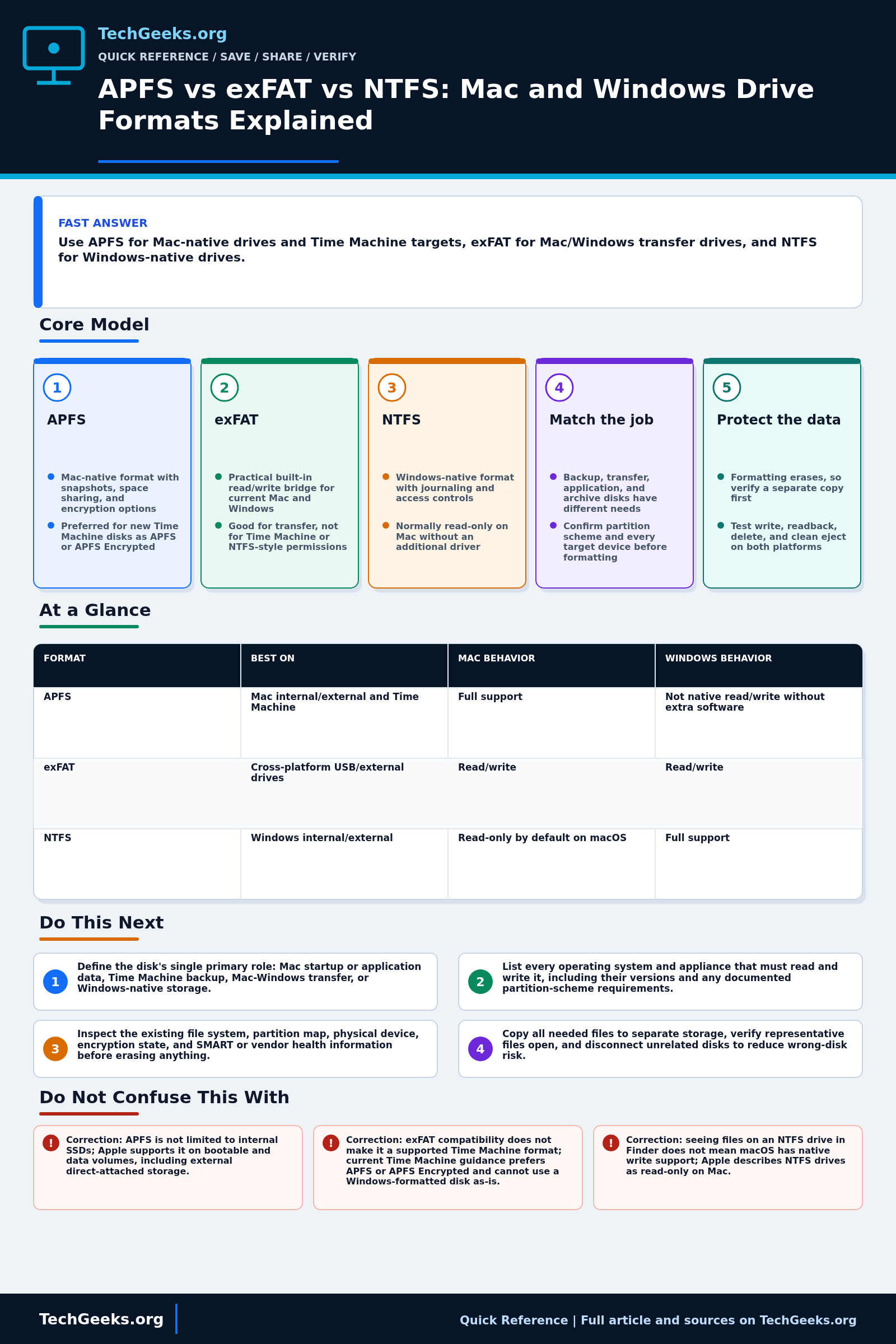
Use APFS for a Mac-native drive or a new Time Machine target, exFAT for a tested Mac/Windows transfer drive, and NTFS for Windows-native storage. Decide which systems must read and write the disk before formatting. Erasing or repartitioning can destroy its contents: verify a separate backup first. Cross-platform access does not mean equivalent permissions, recovery, or backup support.
Start Here: The Beginner Foundation
Choose an external-drive format by the work the drive must do. APFS is the current Mac-native format, exFAT is the usual built-in bridge for a removable drive that both Mac and Windows must write, and NTFS is the normal Windows-native format. A format that is ideal for one job can be unusable for another, so decide whether the disk is for Mac backup, cross-platform transfer, Windows applications, or long-term storage before erasing it.
APFS is the default file system for macOS 10.13 and later. It supports features such as space sharing between volumes, snapshots, encryption options, and efficient operation on flash storage, while also supporting direct-attached hard drives. Current Time Machine guidance prefers APFS or APFS Encrypted for a new backup disk. Windows does not provide normal built-in APFS browsing, so APFS is a poor transfer format when Windows access is required.
exFAT can be read and written by current macOS and Windows installations and supports large files, making it practical for transfer media. It lacks NTFS-style access controls and metadata journaling, so safe ejection and a separate backup are important. APFS uses copy-on-write crash protection rather than NTFS-style journaling. NTFS provides Windows permissions, journaling, quotas, compression, and related features; current macOS normally mounts NTFS as read-only unless separately installed software adds write support.
The Fast Comparison
| Format | Best on | Mac behavior | Windows behavior |
|---|---|---|---|
| APFS | Mac internal/external and Time Machine | Full support | Not native read/write without extra software |
| exFAT | Cross-platform USB/external drives | Read/write | Read/write |
| NTFS | Windows internal/external | Read-only by default on macOS | Full support |
Advanced Notes and Design Boundaries
Compatibility is not just whether a volume mounts: test write support, file-size needs, metadata, encryption, safe removal, repair tools, and the backup application on the exact macOS and Windows releases in use.
- APFS containers can hold multiple volumes that share free space dynamically; optional reserves and quotas constrain individual volumes without creating fixed traditional partitions.
- APFS case-sensitive variants treat names such as Report and report as different items, which can break Mac software that assumes case-insensitive naming; choose case sensitivity only for a known requirement.
- APFS Encrypted on an external data volume and FileVault on a Mac startup disk are related Apple encryption technologies but have different setup, unlock, recovery, and management workflows.
- Apple documents NTFS drives as read-only on Mac, while Disk Utility offers APFS, Mac OS Extended, MS-DOS FAT, and exFAT rather than an NTFS formatter; third-party NTFS drivers add another compatibility and recovery dependency.
- A file system is only one compatibility layer: GUID Partition Map is normally appropriate for modern Mac use, while some appliances require Master Boot Record even when they support FAT or exFAT.
Troubleshooting Workflow
Use a disposable drive for format trials and record its model, partition scheme, operating-system builds, and starting contents. Never test a conversion or erase workflow on the only copy of a file.
- Define the disk's single primary role: Mac startup or application data, Time Machine backup, Mac-Windows transfer, or Windows-native storage.
- List every operating system and appliance that must read and write it, including their versions and any documented partition-scheme requirements.
- Inspect the existing file system, partition map, physical device, encryption state, and SMART or vendor health information before erasing anything.
- Copy all needed files to separate storage, verify representative files open, and disconnect unrelated disks to reduce wrong-disk risk.
- Format as APFS for a modern Mac-native role, APFS or APFS Encrypted for a new Time Machine disk, exFAT for tested Mac-Windows transfer, or NTFS for a Windows-native role.
- Test large-file copy, rename, delete, eject, reconnect, and readback on every required platform before trusting the disk with the only copy of data.
Evidence and Compatibility-Test Method
Evidence status: Native read, write, and Time Machine recommendations are documentation-backed by current Apple and Microsoft material reviewed July 15, 2026. TechGeeks did not format a drive or benchmark APFS, exFAT, NTFS, an enclosure, or a third-party NTFS driver for this draft. Filesystem specifications and vendor support pages do not prove that a particular bridge chip, cable, application, or older operating-system build will behave correctly.
- Planned test: use a disposable external drive with its model, firmware, enclosure, partition scheme, macOS build, and Windows build recorded; create each candidate format with native tools.
- Exercise: large and small files, Unicode and long names, folders, rename and delete, safe eject, reconnect, sudden-disconnect recovery on noncritical data, encryption where intended, and recognition by the actual backup application.
- Accept: required systems can perform the intended read or write operation, hashes match after round trips, metadata needed by the workflow survives, repair tools recognize the volume, and the independent backup can restore the test set.
Data-Loss, Privacy, Licensing, and Recovery Boundaries
Formatting and repartitioning are destructive, and changing the filesystem is not a backup procedure. Verify the physical disk identifier twice, preserve an independent copy, and disconnect unrelated drives before erasing. APFS or BitLocker-style encryption protects data only while keys and account recovery remain available; exFAT does not supply native filesystem permissions or journaling comparable to the native desktop formats. Cross-platform transfer drives may expose deleted or sensitive material to every computer that mounts them. Third-party NTFS write drivers add kernel or system extensions, licensing conditions, update compatibility, and vendor support risk. If a test fails, stop writing, preserve the original medium, return to the known-good format from a verified backup, and use professional recovery help when the data is irreplaceable.
What Format Compatibility Does Not Prove
- Correction: APFS is not limited to internal SSDs; Apple supports it on bootable and data volumes, including external direct-attached storage.
- Correction: exFAT compatibility does not make it a supported Time Machine format; current Time Machine guidance prefers APFS or APFS Encrypted and cannot use a Windows-formatted disk as-is.
- Correction: seeing files on an NTFS drive in Finder does not mean macOS has native write support; Apple describes NTFS drives as read-only on Mac.
- Correction: installing a third-party file-system driver does not change the on-disk format and introduces software-version, security, and recovery dependencies that should be tested.
Real-World Use Cases
- Use APFS for Mac backup drives unless a special compatibility reason exists.
- Use exFAT for drives shared between Mac and Windows.
- Use NTFS for Windows-only drives requiring Windows features.
- Keep a backup before reformatting.
Failure Patterns to Recognize
- A Mac can read but not write NTFS by default.
- Windows cannot natively browse APFS.
- exFAT drive is unplugged unsafely and corrupts.
- Time Machine target is formatted incorrectly.
Common Mistakes
- Formatting a backup drive as exFAT for Time Machine.
- Assuming cross-platform means feature-equivalent.
- Using third-party filesystem drivers without testing.
- Forgetting formatting erases data.
Quick Checklist
- List every device that needs the drive.
- Choose read/write compatibility.
- Back up existing data.
- Format with Disk Utility or Windows Disk Management.
- Test a large file copy both ways.
Common Questions
Useful Gear And Buyer Notes
Affiliate disclosure: As an Amazon Associate, TechGeeks may earn from qualifying purchases. The product links below are buying references, not a requirement to buy a specific brand or seller. Verify compatibility, seller quality, warranty, and current specs before ordering.
Choose the enclosure and drive for the workload before choosing a filesystem: check interface speed, bridge-chip compatibility, capacity, power, TRIM expectations, and both operating systems. Third-party NTFS write software also adds a driver, update, and licensing dependency.
Related TechGeeks Reading
- NAS vs DAS vs Mini PC helps decide whether a portable drive is the right storage architecture at all.
- Homelab Backup Strategy explains why filesystem choice and backup design solve different problems.
- RAID, ZFS Snapshots, Sync, and Backup clarifies recovery boundaries beyond a drive's format.