BitLocker Recovery Key Explained Before You Need It
 Tech Guru
Quick Answer
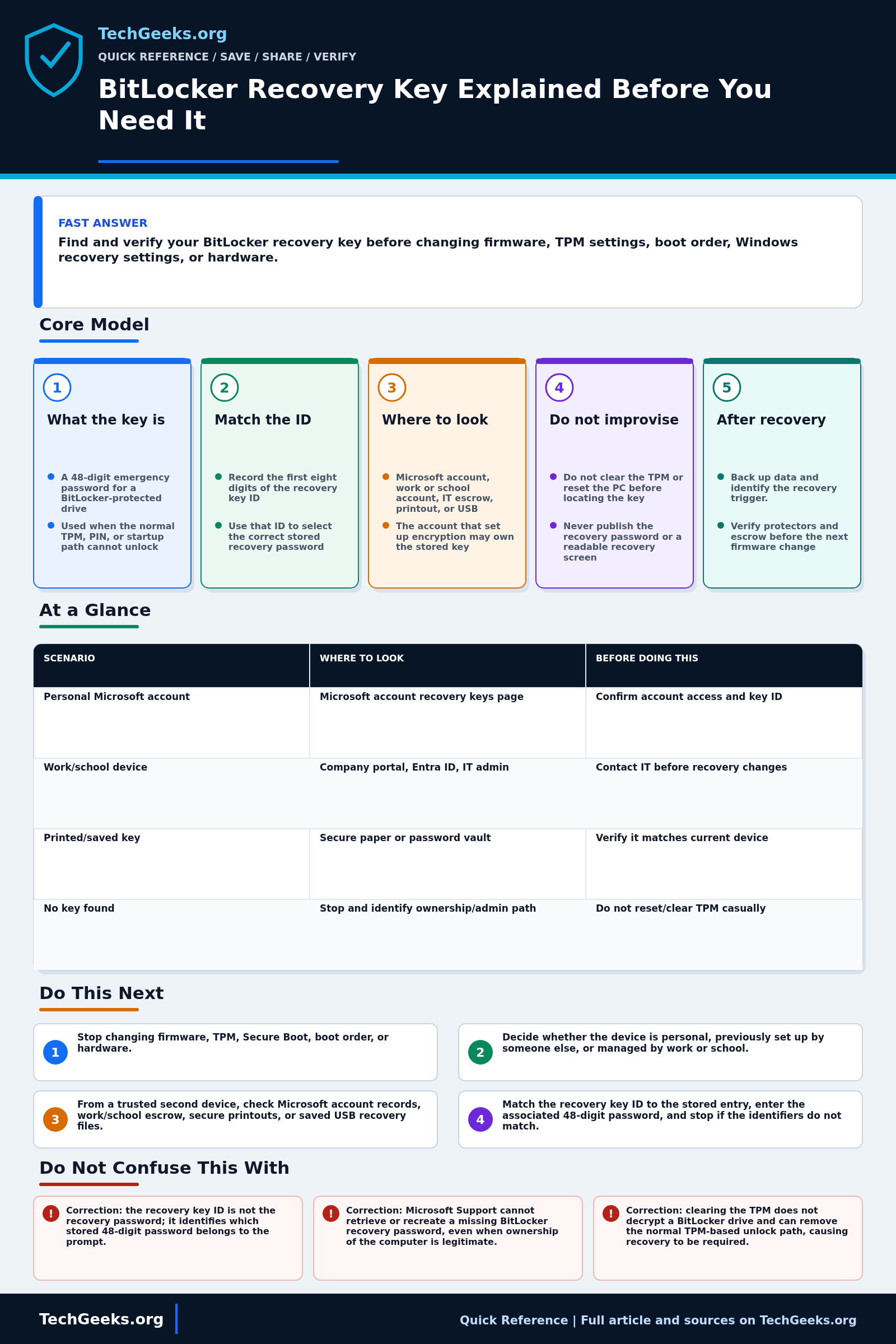
Before firmware, TPM, boot-order, or hardware changes, retrieve the BitLocker recovery password from a trusted second device or secure record. Match its key ID to the affected volume; the password you enter is the associated 48-digit number. For a work or school PC, follow IT's recovery process. Do not clear the TPM or erase the drive while the recovery path is unknown.
Start Here: The Beginner Foundation
BitLocker encrypts a Windows drive so its contents are not readable offline without an authorized key. Normal startup may be unlocked transparently through a Trusted Platform Module, or it may require another protector such as a PIN. The BitLocker recovery password is a separate 48-digit emergency credential used when Windows cannot trust or use the normal unlock path.
Recovery can be triggered by a real attack, but it can also follow legitimate changes involving firmware, the TPM, boot files, boot order, a motherboard, or recovery media. The screen shows a recovery key ID so you can select the matching stored password. Treat the recovery screen as a diagnostic event: record the ID and recent changes without posting the screen or recovery password publicly.
A personal device's recovery information may be attached to the Microsoft account used during setup, while a work or school device may store a recovery copy securely (escrow it) in the organization's account, Microsoft Entra ID, Active Directory, or another management service. A manually enabled drive may instead have a printed copy or a file saved to USB. Microsoft Support cannot recreate a lost recovery password; if no valid protector can unlock the drive, resetting the device removes its files.
The Fast Comparison
| Scenario | Where to look | Before doing this |
|---|---|---|
| Personal Microsoft account | Microsoft account recovery keys page | Confirm account access and key ID |
| Work/school device | Company portal, Entra ID, IT admin | Contact IT before recovery changes |
| Printed/saved key | Secure paper or password vault | Verify it matches current device |
| No key found | Stop and identify ownership/admin path | Do not reset/clear TPM casually |
Advanced Notes and Design Boundaries
A recovery password is only useful when its identifier matches the locked volume and an authorized person can reach it without relying on that same encrypted PC, account session, or failed identity system.
- Match the first eight digits of the recovery key ID on the prompt to the stored entry; device names alone are unreliable when keys have rotated or several devices share similar names.
- Automatic Device Encryption uses BitLocker technology and is available on a broader set of qualifying systems, including some Windows Home devices; manual BitLocker Drive Encryption enablement is licensed for Pro, Enterprise, and Education editions.
- Suspending BitLocker before a planned firmware or early-boot change leaves the volume encrypted but temporarily bypasses platform validation; protection normally resumes on restart unless a reboot count or policy says otherwise.
- Use
manage-bde -statusandmanage-bde -protectors -get C:or the corresponding PowerShell cmdlets to inventory encryption state and protectors before maintenance, subject to administrative policy. Protector output can include the recovery password; do not paste it into a public ticket or screenshot. - Enterprise recovery should include authenticated key release, event logging, root-cause analysis, recovery-password rotation where configured, and verification that current protectors are escrowed after the incident.
Troubleshooting Workflow
Inventory protectors and escrow locations before firmware, TPM, Secure Boot, boot-order, partition, or motherboard work. Use BitLocker's documented suspend and resume controls where appropriate, then verify protection returned after the change.
- Stop changing firmware, TPM, Secure Boot, boot order, or hardware; record the recovery key ID, device identity, and exact prompt without exposing the 48-digit password.
- Decide whether the device is personal, previously set up by someone else, or managed by work or school, because that determines who may own the recovery information.
- From a trusted second device, check the relevant Microsoft account recovery-key page, work or school account, printed records, USB files, or the organization's approved help desk.
- Match the recovery key ID to the stored entry, enter the associated 48-digit password, and stop if the identifiers do not match rather than trying unrelated keys blindly.
- After Windows starts, back up important data and identify the trigger by reviewing recent firmware, boot, hardware, policy, and event-log changes.
- Verify active protectors and current escrow, rotate recovery information if policy requires it, and suspend then resume BitLocker correctly before repeating any planned platform change.
Evidence and Recovery-Key Verification
Evidence status: Recovery-password, escrow, and Device Encryption behavior is documentation-backed by Microsoft guidance reviewed July 15, 2026 and independently bounded by CISA's device-encryption advice. TechGeeks did not force a BitLocker recovery event, clear a TPM, change firmware, or test an organizational escrow service for this draft. Do not manufacture a recovery prompt on the only working computer just to validate an article.
- Planned low-risk check: on a non-production Windows test device or VM, record edition and build, inventory protectors and key identifiers, verify that the matching 48-digit password is available through the documented authorized location, and inspect protection status.
- Planned maintenance trial: snapshot or back up the test system, use the supported suspend command or interface, reboot through a benign firmware-maintenance scenario, resume protection, and confirm the expected protector state without exposing the password in screenshots or logs.
- Accept: the identifier maps to the intended volume, two authorized retrieval paths do not depend on the locked device, protection returns after maintenance, and the backup or reinstall path is documented if recovery still fails.
Key Security, Privacy, Ownership, and Recovery Limits
Treat the 48-digit password as a secret: anyone who has it and physical access may be able to decrypt the volume. Cloud escrow improves availability but places key material within that account's security, provider access, organizational policy, and lawful-request boundaries. A work or school device may be owned and managed by the organization; use its help desk and do not bypass policy. Before BIOS, TPM, Secure Boot, partition, or motherboard changes, back up data, confirm the matching key, and suspend protection only through supported controls. If no valid recovery password exists, Microsoft support cannot recreate it. Preserve the encrypted disk, stop speculative TPM clearing or repartitioning, and choose between another authorized escrow location, a verified backup, or a clean reinstall.
What a Saved Key Does Not Prove
- Correction: the recovery key ID is not the recovery password; it identifies which stored 48-digit password belongs to the prompt.
- Correction: Microsoft Support cannot retrieve or recreate a missing BitLocker recovery password, even when ownership of the computer is legitimate.
- Correction: clearing the TPM does not decrypt a BitLocker drive and can remove the normal TPM-based unlock path, causing recovery to be required.
- Correction: entering a recovery password restores access for that event, but it does not explain why recovery happened or prove that the underlying cause is resolved.
Real-World Use Cases
- Store recovery keys somewhere you can access during lockout.
- Check key ID, not just device name.
- Treat the key like sensitive security material.
- For managed devices, follow IT policy.
Failure Patterns to Recognize
- Firmware update triggers recovery.
- TPM cleared or changed.
- Boot order changes.
- Motherboard replacement changes trust state.
- User cannot access the account where the key is stored.
Common Mistakes
- Clearing TPM without the recovery key.
- Assuming the key is in any Microsoft account.
- Saving recovery keys only on the encrypted PC.
- Posting recovery screens publicly.
Quick Checklist
- Check BitLocker status.
- Find the recovery key.
- Record where it is stored.
- Verify work/school ownership.
- Do not change TPM/firmware until the key is available.
Common Questions
Useful Gear And Buyer Notes
Affiliate disclosure: As an Amazon Associate, TechGeeks may earn from qualifying purchases. The product links below are buying references, not a requirement to buy a specific brand or seller. Verify compatibility, seller quality, warranty, and current specs before ordering.
A hardware security key can protect the account that stores an escrowed BitLocker key, but it is not the 48-digit disk-recovery password. Keep account recovery, disk recovery, and offline records as separate, documented controls.
Related TechGeeks Reading
- Recovering From Lost TOTP, Passkey, or Vault Access helps separate identity recovery from disk recovery.
- Homelab Documentation and Family Handoff shows how to make recovery records usable by another authorized person.
- Windows 10 ESU and Windows 11 Privacy Survival Guide provides current Windows security and lifecycle context.