FileVault vs BitLocker: Full-Disk Encryption on Mac and Windows
 Tech Guru
Quick Answer
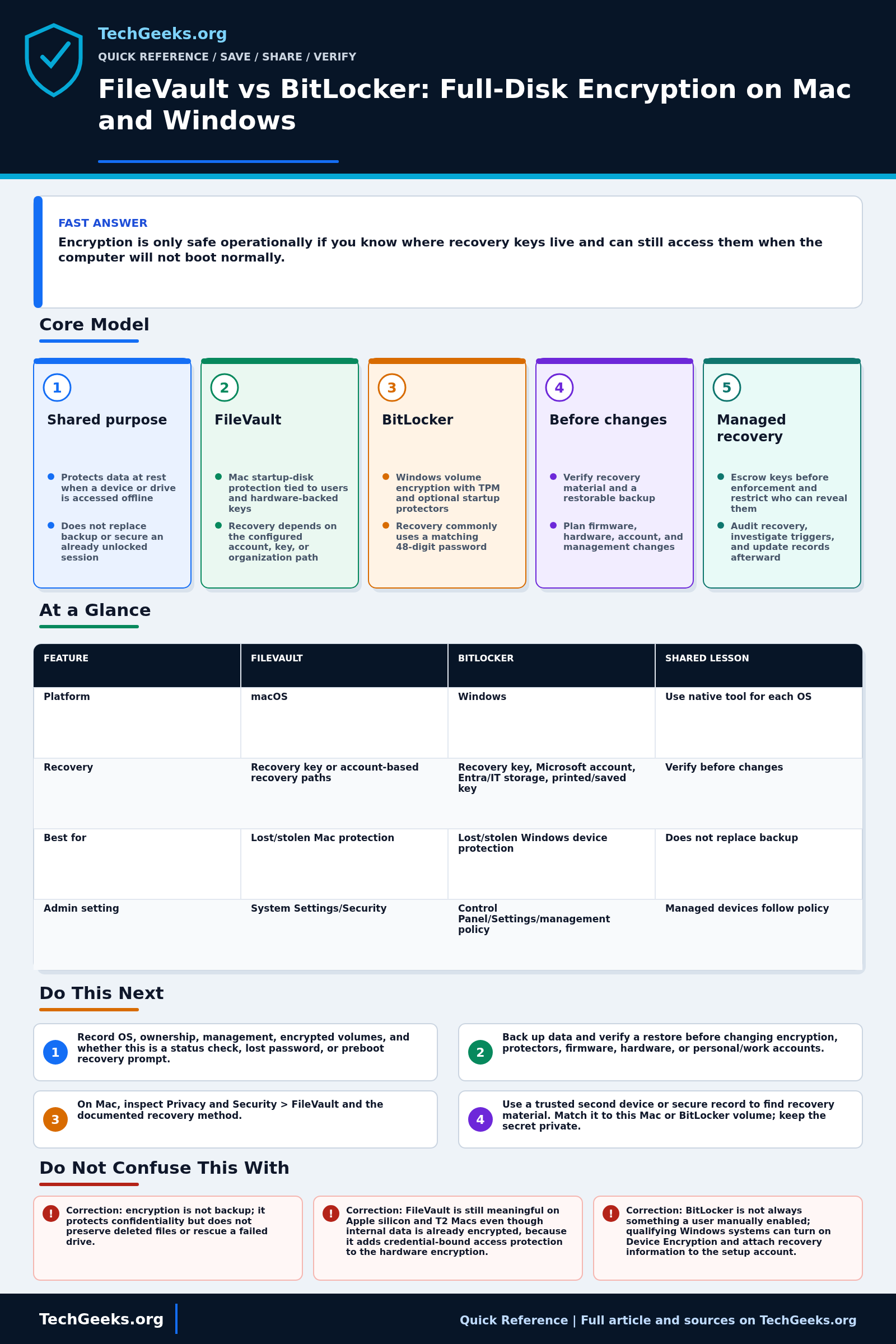
Use FileVault for Mac startup-volume protection and BitLocker or Device Encryption where supported on Windows. Before enabling encryption or servicing the computer, verify its protection status, retrieve the correct recovery material from somewhere else, and test a separate backup. Encryption protects offline data; it does not stop an unlocked session from exposing files or make a failed drive recoverable.
Start Here: The Beginner Foundation
FileVault and BitLocker are the native volume-encryption systems for macOS and Windows. They protect data at rest when a computer or drive is lost, stolen, removed, or accessed outside an authorized startup. They do not stop an authorized signed-in user, malicious software running in that session, or accidental deletion, and they do not replace a tested backup.
FileVault protects a Mac startup disk by requiring an authorized user's credentials or an approved recovery path. On Macs with Apple silicon or the T2 Security Chip, internal data is already hardware encrypted; enabling FileVault adds protection that binds access to user credentials and the hardware-backed key hierarchy. On older Macs without those chips, FileVault is what encrypts existing and future data on the startup disk.
BitLocker encrypts Windows operating-system, fixed-data, and removable-data volumes in supported configurations. A TPM can release an operating-system volume key only when measured startup state is acceptable, with optional PIN or startup-key protection under policy. Windows Device Encryption can enable BitLocker technology automatically on qualifying devices, while the fuller BitLocker Drive Encryption controls are associated with Pro, Enterprise, and Education editions. Both platforms require a deliberate recovery and backup plan before firmware, hardware, account, or management changes.
The Fast Comparison
| Feature | FileVault | BitLocker | Shared lesson |
|---|---|---|---|
| Platform | macOS | Windows | Use native tool for each OS |
| Recovery | Recovery key or account-based recovery paths | Recovery key, Microsoft account, Entra/IT storage, printed/saved key | Verify before changes |
| Best for | Lost/stolen Mac protection | Lost/stolen Windows device protection | Does not replace backup |
| Admin setting | System Settings/Security | Control Panel/Settings/management policy | Managed devices follow policy |
Advanced Notes and Design Boundaries
The meaningful comparison is not a contest between two cipher labels. Hardware generation, OS edition, TPM or Secure Enclave state, user authentication, key protectors, recovery escrow, boot integrity, backup design, and organizational ownership determine whether encrypted data remains both confidential and recoverable.
- Apple documents AES-XTS volume encryption; on Apple silicon and T2 Macs, FileVault key handling for internal storage occurs in the Secure Enclave and user credentials help protect the key-encryption key.
- FileVault recovery may use an Apple Account path, a personal cryptographic recovery key, or an organization-escrowed key depending on macOS version, setup choice, and management; verify the actual Mac rather than assuming one universal flow.
- BitLocker separates the full-volume encryption key from key protectors such as TPM, TPM plus PIN, startup key, and a 48-digit recovery password; recovery unlocks protected key material rather than decrypting the whole disk in advance.
- BitLocker TPM recovery can be triggered when measured boot changes; planned firmware work should include verified escrow and, when appropriate, a controlled suspend and resume rather than TPM clearing.
- Managed deployments should securely store recovery copies (escrow) before enforcing encryption, restrict authenticated key disclosure, rotate or invalidate exposed recovery credentials where supported, and test institutional recovery when staff or devices leave.
Troubleshooting Workflow
Treat an unexpected preboot prompt as a recovery event, not as a cue to clear security hardware. Preserve the displayed key identifier and recent-change history, then validate the authorized recovery path without entering secrets into search engines, chat systems, or unapproved support channels.
- Identify the platform, OS version, ownership, management status, encrypted volumes, and whether the issue is normal status checking, password loss, or a preboot recovery prompt.
- Back up accessible data and verify a restore before enabling encryption, changing protectors, updating firmware, servicing hardware, or altering user and organization accounts.
- On Mac, inspect Privacy and Security > FileVault and the documented recovery method; on Windows, inspect Device Encryption or BitLocker status and list protectors with approved administrative tools.
- Confirm recovery material from a separate trusted device or approved physical record, and ensure the identifier belongs to the current Mac or BitLocker volume without exposing the secret.
- For a lockout, follow the platform prompt and organization policy; stop before erasing, clearing the TPM, deleting users, or removing management when a valid recovery path has not been confirmed.
- After access is restored, determine the trigger, verify encryption and protector state, update escrow or recovery records as required, and complete a fresh backup and restore test.
Evidence and Acceptance Checks
This is a documentation-backed operational comparison based on current Apple Platform Security and Mac help pages, Microsoft BitLocker recovery documentation, and the independent government threat model in NIST SP 800-111. TechGeeks did not enable encryption, trigger recovery, replace a TPM or logic board, or time encryption on representative hardware for this draft. UI wording and automatic-enablement behavior must therefore be confirmed on the exact managed or personal device.
- Status acceptance: every intended fixed volume reports protected, expected protectors or authorized users are present, and no encryption or decryption operation is unexpectedly paused.
- Recovery acceptance: the displayed volume or device identifier maps to retrievable recovery material stored away from the computer, and the owner knows the authorized account or help-desk path.
- Data acceptance: a recent backup can restore a sample file to another location; seeing a backup job marked successful is insufficient by itself.
- Change acceptance: planned firmware or hardware work follows current vendor guidance, including controlled BitLocker suspension where appropriate, and protection is confirmed resumed afterward.
Security, Privacy, Legal, and Recovery Boundaries
A recovery key is a high-value secret. Do not store it only on the encrypted computer, place it in an unapproved ticket, or expose it in screenshots. Consumer account escrow and employer or school escrow have different privacy and ownership consequences; users of managed devices should not remove management, rotate institutional keys, or attempt bypasses without authorization. Organizations should restrict and audit key disclosure, follow retention and departure policy, and obtain legal guidance for compelled access or records obligations.
Before enabling encryption or servicing hardware, make a recoverable backup and verify all authorized recovery paths. If recovery fails, preserve identifiers and stop destructive actions such as TPM clearing, user deletion, or disk erasure. The supported last resort may be erasing the device and restoring from backup; neither vendor should be assumed able to recreate a lost cryptographic key.
What This Does Not Mean
- Correction: encryption is not backup; it protects confidentiality but does not preserve deleted files or rescue a failed drive.
- Correction: FileVault is still meaningful on Apple silicon and T2 Macs even though internal data is already encrypted, because it adds credential-bound access protection to the hardware encryption.
- Correction: BitLocker is not always something a user manually enabled; qualifying Windows systems can turn on Device Encryption and attach recovery information to the setup account.
- Correction: a login password and a recovery key are not interchangeable copies of the same secret; each platform uses separate credentials and protectors with distinct recovery roles.
The documentation establishes supported architecture and recovery flows; it does not prove that a particular computer finished encryption, that its recovery key was escrowed correctly, that malware cannot read an unlocked session, or that a backup is restorable. NIST SP 800-111 supplies an older storage-encryption threat model, not current FileVault or BitLocker UI instructions. Device status, key retrieval, and a restore check are separate evidence.
Real-World Use Cases
- Enable encryption on portable devices.
- Store recovery material separately from the encrypted computer.
- Document work/school management ownership.
- Back up before major OS, firmware, or hardware changes.
Failure Patterns to Recognize
- Recovery key is stored only on the encrypted device.
- A managed device needs IT-held recovery material, but the authorized retrieval path is unavailable.
- Firmware/TPM change triggers BitLocker recovery.
- User account problems block FileVault unlock.
Common Mistakes
- Assuming encryption is backup.
- Not testing recovery-key access.
- Changing hardware/firmware before key verification.
- Mixing personal and managed device instructions.
Quick Checklist
- Check encryption status.
- Find recovery key.
- Verify account access.
- Back up important files.
- Document owner/admin path.
Common Questions
Useful Gear And Buyer Notes
Affiliate disclosure: As an Amazon Associate, TechGeeks may earn from qualifying purchases. The product links below are buying references, not a requirement to buy a specific brand or seller. Verify compatibility, seller quality, warranty, and current specs before ordering.
A hardware security key can strengthen the account that holds recovery information, and an external drive can hold a separate backup, but neither accessory substitutes for verified encryption and recovery records. Check platform support, account enrollment, drive capacity, encryption policy, and the consequence of losing the accessory before purchase.
Related TechGeeks Reading
- The 3-2-1 Backup Rule in 2026 separates recoverability from disk confidentiality.
- How to Back Up a Windows PC to a NAS Automatically covers one Windows backup path to verify before recovery-sensitive changes.
- Windows 10 ESU and Windows 11 Privacy Survival Guide adds current Windows lifecycle and privacy context.
Check the Recovery Path on Your Device
Recovery differs with Mac hardware, Windows edition, setup choices, and management policy. Check the actual encrypted volume and authorized recovery route before servicing it; an account name or a saved key from an older setup is not proof that the current volume can be unlocked. Keep real keys and device identifiers out of public screenshots and examples.
References
- Apple Support: Protect data on your Mac with FileVault
- Apple Platform Security: Volume encryption with FileVault
- Apple Support: FileVault recovery key
- Microsoft Learn: BitLocker recovery overview
- Microsoft Learn: BitLocker FAQ
- Microsoft Support: Find your BitLocker recovery key
- NIST SP 800-111: Guide to Storage Encryption Technologies