NTFS vs exFAT vs FAT32: Which Format Should You Use?
 Tech Guru
Quick Answer
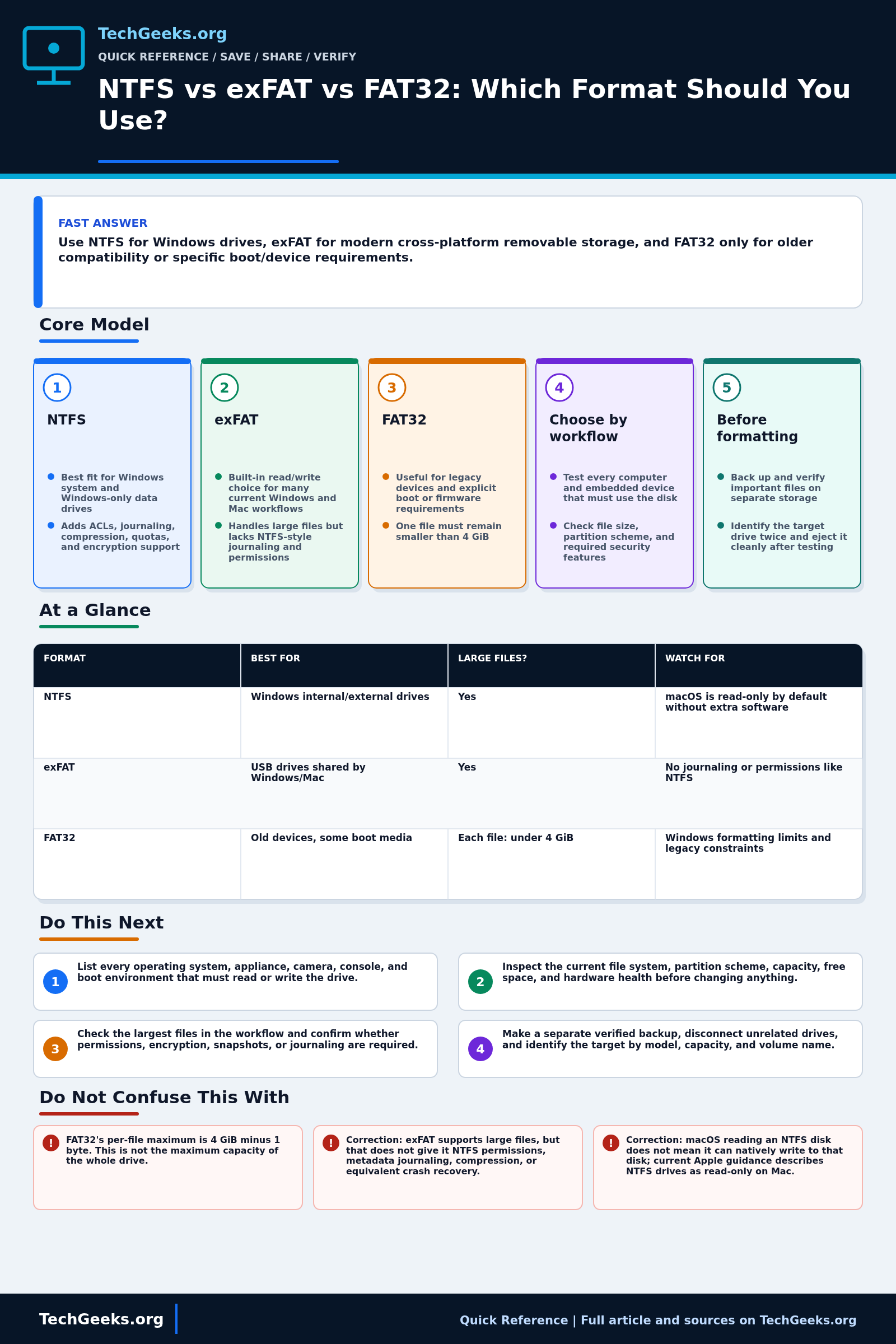
Use NTFS for Windows-native storage, exFAT for a tested Windows/Mac transfer drive, and FAT32 only when a device or boot workflow requires it. FAT32 cannot hold a single file of 4 GiB or larger. Verify a separate backup before formatting. Check every target device, partition scheme, and write requirement; a compatible format name does not guarantee equivalent recovery or security features.
Start Here: The Beginner Foundation
A file system is the structure an operating system uses to name, store, find, and protect files on a disk. The choice affects which computers and devices can use the disk, the largest file it can hold, and which reliability or security features are available. Reformatting normally destroys the existing directory structure and data, so copy anything important elsewhere and verify the copy before changing a format.
NTFS is the normal choice for a Windows system drive and often the best choice for a Windows-only data or backup drive. It supports features such as access control lists, metadata journaling, compression, quotas, and file-system encryption. Those features matter to Windows, but they reduce portability: current macOS can normally read an NTFS drive but treats it as read-only without additional software.
exFAT is usually the practical choice for a removable drive that must be written by both current Windows and macOS systems. It supports files far larger than FAT32 does, but it does not provide NTFS-style access control or metadata journaling. FAT32 remains useful when a camera, television, game console, firmware updater, or boot process explicitly requires it; a single FAT32 file cannot be 4 GiB or larger, which rules it out for many videos, disk images, and archives.
The Fast Comparison
| Format | Best for | Large files? | Watch for |
|---|---|---|---|
| NTFS | Windows internal/external drives | Yes | macOS is read-only by default without extra software |
| exFAT | USB drives shared by Windows/Mac | Yes | No journaling or permissions like NTFS |
| FAT32 | Old devices, some boot media | Only files smaller than 4 GiB | Windows formatting limits and legacy constraints |
Advanced Notes and Design Boundaries
Choose a filesystem from the devices and failure behavior the drive must support, not from drive capacity alone. NTFS is the normal Windows system and durable local-volume choice; exFAT is a practical large-file interchange format across current operating systems; FAT32 remains useful where older devices demand it, but its per-file limit makes it unsuitable for many modern images and videos.
- FAT32 stores file length in a 32-bit field, so the practical per-file ceiling is one byte below 4 GiB even though comparison tables often round the limit to 4 GiB.
- The 32 GB FAT choice shown by common formatters is a tool or platform policy, not the complete on-disk FAT32 volume limit; do not infer device compatibility from capacity alone.
- NTFS metadata journaling improves recovery of file-system consistency after interruption, but it is not a backup and does not guarantee that the newest application data survived a power loss.
- exFAT uses 64-bit file-size fields and is designed for large files and storage devices, but it lacks NTFS ACLs, hard links, alternate data streams, and metadata journaling in Microsoft's feature comparison.
- Compatibility also depends on partition scheme, sector size, cluster size, firmware, and device implementation; validate the exact target device instead of relying only on the file-system label.
Troubleshooting Workflow
When a removable drive fails to mount or copy, stop writing to the only copy. Record the host OS, device model, partition scheme, filesystem, encryption, reported error, free space, and whether the drive was safely ejected. Test the cable, port, and read-only access before repair commands or reformatting alter recoverable metadata.
- List every operating system, appliance, camera, console, and boot environment that must read or write the drive.
- Inspect the current file system, partition scheme, capacity, free space, and hardware health before changing anything.
- Check the largest files in the workflow and confirm whether permissions, encryption, snapshots, or journaling are required.
- Make a separate verified backup, disconnect unrelated drives, and identify the target by model, capacity, and volume name.
- Choose NTFS for Windows-native features, exFAT for tested modern cross-platform transfer, or FAT32 only for a documented compatibility requirement, then format with the appropriate partition scheme.
- Copy representative small and large files, read them on every required device, test write and delete operations, then eject the drive cleanly.
Evidence and Compatibility Acceptance Test
This Quick Reference is documentation-backed. TechGeeks did not independently test every Windows, macOS, Linux, camera, television, console, car, firmware, enclosure, or removable drive. Filesystem support on an operating system does not prove that a particular appliance implements the same limits or handles interrupted writes safely.
- Back up the source, format a disposable device with the intended partition scheme and filesystem, then reconnect it before copying data.
- Copy empty files, Unicode and long names, many small files, and at least one file larger than 4 GiB when the workflow requires it.
- Read, modify, rename, and delete the test data on every required operating system or appliance using supported drivers only.
- Compare hashes after each round trip and confirm permissions, timestamps, alternate data, links, or encryption survive if the workflow depends on them.
- Safely eject, reconnect after a normal restart, and practice restoring the dataset to a newly formatted replacement rather than treating repair as backup.
What Filesystem Compatibility Does Not Prove
- FAT32 is not limited to 4 GB total capacity; the per-file ceiling is one byte below 4 GiB.
- exFAT supports large files, but that does not give it NTFS permissions, metadata journaling, compression, or equivalent crash recovery.
- macOS reading an NTFS disk does not mean it can natively write to that disk; current Apple guidance describes NTFS drives as read-only on Mac.
- formatting is not a safe conversion method for a disk with needed data; it normally erases the existing file-system metadata and should follow a verified backup.
Formatting, Encryption, and Recovery Boundaries
Formatting and repartitioning can destroy access to existing data. Verify the physical disk identifier, capacity, serial number, and backup before any destructive command; disconnect unrelated removable drives when practical. A quick format creates filesystem structures but does not securely erase prior content, and no format protects sensitive files without an appropriate encryption and key-recovery plan.
If corruption is suspected, preserve the device and make a sector-level image when the data matters before running repair tools. Use only authorized recovery methods on data you own or are permitted to handle. Journaling can improve metadata recovery after interruption, but it does not repair failing flash, an unsafe USB bridge, malware, accidental overwrite, or the absence of another copy.
Real-World Use Cases
- Use exFAT for a USB SSD moved between Windows and Mac.
- Use NTFS for Windows backup/system drives when Windows-only features matter.
- Use FAT32 only when a device requires it.
- Check camera, console, TV, and boot-tool requirements before formatting.
Failure Patterns to Recognize
- Large video file will not copy to FAT32.
- Mac cannot write to NTFS without extra support.
- exFAT corruption risk rises if drives are unplugged unsafely.
- Formatting erases the wrong drive.
Common Mistakes
- Choosing FAT32 for a modern video workflow.
- Assuming exFAT has NTFS permissions.
- Formatting before backing up.
- Using third-party NTFS drivers without testing reliability.
Quick Checklist
- Identify every OS/device that must read/write.
- Check maximum file size needs.
- Back up the drive.
- Choose format.
- Safely eject after use.
Common Questions
OS and Device Support Recheck
Fact-checked July 15, 2026 against Microsoft's current filesystem comparison, exFAT specification, NTFS overview and FAT behavior, Apple's Disk Utility guidance, and the SD Association capacity and formatter documentation. SD Association Formatter 5.0.3 was current at review time; that version does not determine support in a camera or other appliance.
Related TechGeeks Reading
- Back Up a Windows PC to a NAS Automatically
- Homelab Backup Strategy: NAS, Offsite Copies, and Restore Tests
- Google Drive Is Not a Backup
Useful Gear And Buyer Notes
Affiliate disclosure: As an Amazon Associate, TechGeeks may earn from qualifying purchases. The product links below are buying references, not a requirement to buy a specific brand or seller. Verify compatibility, seller quality, warranty, and current specs before ordering.
Buy removable media and readers for the exact device class, interface, capacity, sustained-write need, connector, and environmental use. A fast SSD or high-capacity card does not guarantee firmware compatibility, safe power-loss behavior, or recoverability; include a second destination and tested cable or reader in the workflow.
References
- Apple Support: File system formats available in Disk Utility
- Microsoft Learn: Local file systems
- Microsoft Learn: File System Functionality Comparison
- Microsoft Learn: exFAT File System Specification
- Microsoft Learn: NTFS overview
- Microsoft Open Specifications: FAT32 maximum object size behavior
- Apple Support: If you cannot move or copy an item on Mac
- SD Association: Capacity Classes and Filesystems
- SD Association: SD Memory Card Formatter
The July 15, 2026 review establishes documented features and limits, not safe behavior on every device, bridge chipset, operating-system driver, or damaged medium.