Time Machine vs iCloud Drive: Backup vs Sync
 Tech Guru
Quick Answer
Use iCloud Drive for sync and access, and Time Machine or another backup system for recoverable history. A deletion can sync, and a file visible in Finder may have its original only in iCloud. Verify what is backed up and restore to another location. Do not erase the Mac, disable sync, or reformat the only backup disk before that recovery check passes.
These checks assume local administrative access, a suitable backup destination, and an Apple Account recovery path you can use without the Mac. Keep those prerequisites in place before changing backup or sync settings.
Start Here: The Beginner Foundation
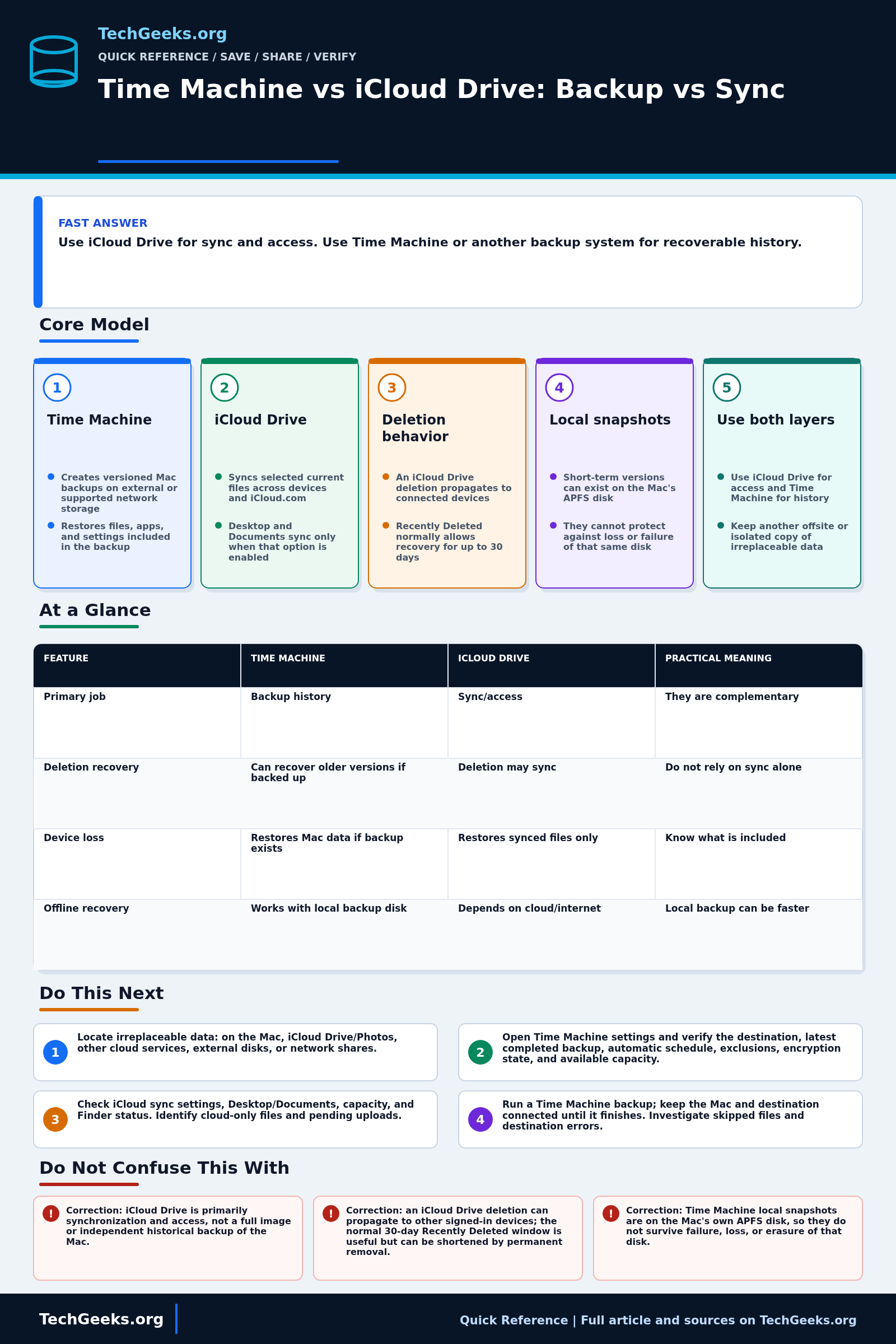
Time Machine and iCloud Drive solve different problems. Time Machine creates a restorable history of a Mac on an external or supported network destination. iCloud Drive synchronizes selected files and folders through an Apple Account so current content is available on other devices and iCloud.com. Sync is useful for access and collaboration, but a change or deletion can propagate to every connected device.
Time Machine can back up apps, documents, photos, email, and other Mac data that is included in its configuration. Apple's default retention model keeps hourly backups for the past 24 hours, daily backups for the past month, and weekly backups for earlier months, deleting the oldest history when the destination fills. Apple recommends a backup device with ideally at least twice the Mac's storage capacity and currently prefers APFS or APFS Encrypted for a new directly attached backup disk.
iCloud Drive covers what is actually stored in iCloud Drive; Desktop and Documents join it only when that option is enabled, and other services such as iCloud Photos have separate settings. Optimize Mac Storage can leave some originals only in iCloud until downloaded. Deleted iCloud Drive files normally remain recoverable for 30 days unless permanently removed, but that limited recovery window is not a complete independent backup. Use sync for availability and Time Machine plus another offsite or isolated copy for recoverability.
The Fast Comparison
| Feature | Time Machine | iCloud Drive | Practical meaning |
|---|---|---|---|
| Primary job | Backup history | Sync/access | They are complementary |
| Deletion recovery | Can recover older versions if backed up | Deletion may sync | Do not rely on sync alone |
| Device loss | Restores Mac data if backup exists | Restores synced files only | Know what is included |
| Offline recovery | Works with local backup disk | Depends on cloud/internet | Local backup can be faster |
Advanced Notes and Design Boundaries
Coverage depends on where the original bytes actually reside and which service owns them. Treat local Mac data, cloud-only iCloud Drive items, iCloud Photos, external volumes, application databases, local snapshots, Time Machine history, and offsite copies as separate data classes with separate credentials and recovery behavior.
- Time Machine local snapshots are stored on the same APFS source disk, normally hourly for up to 24 hours or until space is needed; they provide short history but do not protect against loss of that disk.
- APFS or APFS Encrypted is preferred for new Time Machine disks, while existing Mac OS Extended journaled Time Machine destinations remain supported; a Windows-formatted destination cannot be used without reformatting.
- A supported NAS can advertise Time Machine and accept backups over SMB; AFP remains listed for some destinations, but Apple recommends SMB when there is a choice.
- Desktop and Documents synchronization is optional, and media libraries such as Photos or iMovie follow application-specific rules; audit each data class rather than inferring coverage from one iCloud switch.
- An encrypted Time Machine destination protects backup confidentiality, but its password becomes part of the recovery plan; losing both the Mac and the only record of that password can make the backup unusable.
Troubleshooting Workflow
Inventory before changing sync or backup settings. Confirm which items are local, downloaded, excluded, or cloud-only, then test recovery to a different location so a successful sync icon or backup timestamp is not mistaken for usable data.
- Inventory irreplaceable data and mark where each item actually lives: local Mac storage, iCloud Drive, iCloud Photos, another cloud service, an external disk, or a network share.
- Open Time Machine settings and verify the destination, latest completed backup, automatic schedule, exclusions, encryption state, and available capacity.
- Open iCloud settings and verify Sync this Mac, Desktop and Documents, storage capacity, Finder status icons, and any files that are currently cloud-only or waiting to upload.
- Create or update a Time Machine backup, leave the Mac and destination connected until completion, and investigate any reported skipped files or destination errors.
- Restore a test folder to a different location and open several restored files; separately confirm that a representative iCloud Drive file is available from another trusted device.
- Add an independent offsite or normally disconnected copy for critical data, document recovery credentials, and schedule recurring checks of backup completion and restore results.
Evidence and Recovery Acceptance Tests
This review is documentation-backed; TechGeeks did not perform a clean-macOS migration, account-loss exercise, Time Machine disk failure, or iCloud outage test. Your evidence should show that representative data can be recovered without overwriting the current copy.
- Complete a Time Machine backup and record destination, encryption state, latest snapshot time, exclusions, and any warnings. Do not infer coverage for excluded or cloud-only content.
- Restore a current folder and an older or deleted version to an alternate location; open several files and verify names, dates, package contents, and permissions.
- Recover one configuration or application data set, not only a document. Record any account sign-in, software reinstall, key, or license dependency that affects the recovery time.
- Mark representative iCloud Drive items as downloaded, disconnect the Mac from the network, and confirm the required files open offline. Separately verify access from another trusted device.
- Demonstrate access to the encrypted backup password and Apple Account recovery method without storing either in the same lost-or-stolen-device failure domain.
- Confirm that irreplaceable data has a second offsite or normally disconnected copy. Keep the old Mac or backup history intact until a replacement restore and application check pass.
Privacy, Account, and Rollback Boundaries
- Time Machine disks and cloud accounts can contain mail, messages, photos, documents, browser data, and credentials. Encrypt appropriate destinations, use multifactor authentication, and restrict physical and administrative access.
- Encryption is only recoverable when the password or recovery material survives. Test the documented recovery path before retiring the device that currently holds the credentials.
- Shared, workplace, regulated, or legally held data may have retention and deletion rules that differ from a personal Mac. Confirm policy before copying it to a private disk or cloud account.
- Before disabling Desktop and Documents sync, changing Apple Accounts, turning off Optimize Mac Storage, or moving libraries, download and archive the required content and read Apple's current behavior for that change.
- Do not use the only production Mac as a destructive restore test. Restore to an alternate path or spare system, preserve the current backup set, and roll back the setting change if uploads, downloads, or backup history become incomplete.
What This Does Not Mean
- A green Time Machine status does not prove that every data class is included, that an older usable version exists, or that credentials and applications can be recovered.
- A Finder icon does not prove the full file is stored locally; Optimize Mac Storage can leave a cloud-only placeholder that is unavailable offline and may not enter a local backup as expected.
- The normal 30-day iCloud deleted-file window is not immutable history and can be shortened by permanent removal; it does not replace an independently controlled backup.
- A successful restore of one document does not prove a full Mac migration, application consistency, acceptable recovery time, or account recovery.
- Time Machine local snapshots on the source disk do not survive loss, failure, or erasure of that disk.
Real-World Use Cases
- Use Time Machine for Mac backup history.
- Use iCloud Drive for access across devices.
- Check which folders are actually syncing.
- Keep at least one backup outside the Mac.
Failure Patterns to Recognize
- Mac is lost and only some files were in iCloud.
- File deletion syncs to other devices.
- Backup disk was never connected.
- iCloud storage fills and syncing stops.
Common Mistakes
- Calling sync a backup.
- Never checking Time Machine status.
- Relying on one always-reachable local backup without an offsite or isolated recovery copy.
- Assuming Photos, Desktop/Documents, and external drives are all covered automatically.
Quick Checklist
- Open Time Machine settings.
- Verify last backup.
- Check iCloud Drive folders.
- Restore a test file.
- Plan offsite backup for irreplaceable data.
Common Questions
Useful Gear And Buyer Notes
Affiliate disclosure: As an Amazon Associate, TechGeeks may earn from qualifying purchases. The product links below are buying references, not a requirement to buy a specific brand or seller. Verify compatibility, seller quality, warranty, and current specs before ordering.
Size a Time Machine destination for the Mac's used capacity, change rate, included volumes, and required history; Apple currently describes a device with at least twice the Mac's storage capacity as ideal. Confirm macOS compatibility, interface, power, encryption, and vendor support, then budget separately for an offsite or disconnected copy.
Related TechGeeks Reading
References
- Apple Support: Back up your Mac with Time Machine
- Apple Support: Set up iCloud Drive
- Apple Support: Types of disks you can use with Time Machine
- Apple Support: About Time Machine local snapshots
- Apple Support: Add Desktop and Documents files to iCloud Drive
- Apple Support: Recover deleted files on iCloud.com
- NIST SP 800-209: backup, isolation, and restoration assurance