Password Manager vs Browser Passwords
 Tech Guru
Quick Answer
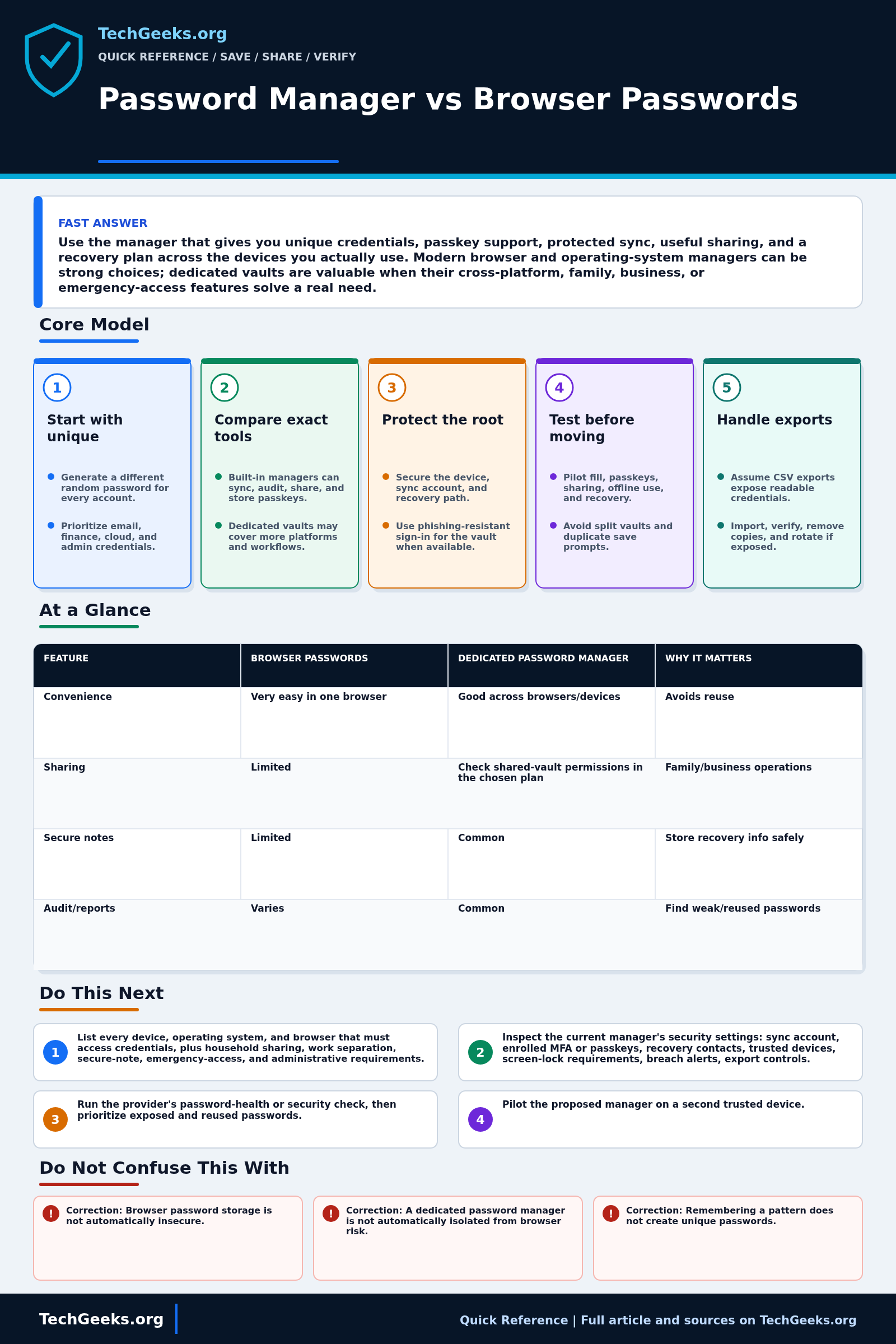
Use the password manager that reliably creates unique credentials on your devices and gives you a protected recovery path. A browser or operating-system manager may be enough; a dedicated vault is useful when its cross-platform, sharing, or emergency-access features meet a real need. Test before migrating, protect the sync account, and treat password exports as plaintext unless documented otherwise.
Start Here: The Beginner Foundation
A browser password manager is still a password manager, so the useful question is not whether browser storage is automatically unsafe. Current browser and operating-system managers can generate unique passwords, encrypt and sync credentials, save passkeys, flag reused or exposed passwords, and sometimes share credentials. Dedicated password managers often add broader browser and operating-system coverage, separate apps, secure notes, attachments, flexible shared vaults, emergency access, or business administration. Those capabilities vary by product and plan, and the boundary is becoming less distinct. Compare the exact tools you can maintain rather than assuming that one category always wins.
The largest everyday gain comes from using a unique, randomly generated password for every site and letting a trusted manager fill it on the correct origin. That limits credential stuffing when one service is breached and removes pressure to invent memorable variations. A manager does not make a weak account recovery process safe, and autofill cannot prevent every phishing, malicious-extension, endpoint-malware, or session-cookie attack. Protect the device with updates, full-disk encryption, a strong screen lock, and separate user accounts where appropriate. Protect the manager or sync account with phishing-resistant authentication when available and review which devices can decrypt or display the vault.
Choose around your actual workflow. A person who uses one well-protected platform may find its built-in manager complete and easier to support. Someone who switches among several browsers and operating systems, shares household credentials, separates work and personal vaults, or needs administrative controls may benefit from a dedicated manager. Before committing, test import and export, supported devices, passkey behavior, sharing permissions, offline access, recovery, and what happens when the subscription or provider account is unavailable. Document a recovery path that a trusted person can follow without giving them routine access, and treat any CSV export as plaintext unless the product explicitly documents otherwise.
The Fast Comparison
| Feature | Browser passwords | Dedicated password manager | Why it matters |
|---|---|---|---|
| Convenience | Very easy in one browser | Good across browsers/devices | Avoids reuse |
| Sharing | Limited | Check shared-vault permissions in the chosen plan | Family/business operations |
| Secure notes | Limited | Common | Store recovery info safely |
| Audit/reports | Varies | Common | Find weak/reused passwords |
| Emergency access | Rare | Available in some products or plans; verify the recovery design | Family recovery planning |
Advanced Notes and Design Boundaries
The meaningful choice is not “browser bad, dedicated app good.” Both can generate unique passwords, synchronize credentials, and integrate passkeys; their trust boundaries, unlock controls, browser dependence, sharing, export, audit, and recovery behavior differ. Choose the smallest system that prevents reuse and that you can restore without weakening the primary email or platform account.
- Security properties depend on the specific design: local vault encryption, key derivation, server-side knowledge, device-bound keys, account recovery, extension permissions, and administrative policy. The labels browser and dedicated do not by themselves describe those controls.
- A compromised browser profile can expose saved credentials and active sessions, but a dedicated manager used through a browser extension still shares much of the same endpoint and extension attack surface. Endpoint integrity and prompt interpretation remain important in either model.
- Origin-aware credential filling can reduce accidental entry on lookalike domains, while passkeys add cryptographic origin binding. Neither protects an already authenticated session token that malware or a reverse proxy captures through another path.
- Passkey storage, synchronization, and export are provider-specific. Verify supported operating systems, browser integration, account recovery, and credential-transfer behavior before making a passkey provider the only route into critical accounts.
- Many password migrations use a CSV or another broadly readable interchange format. Perform the export on a trusted device, import immediately, verify counts and samples, remove residual export copies from their actual storage locations, and rotate especially sensitive credentials if the file may have been exposed. Do not erase unrelated backup history while cleaning up an export.
Troubleshooting Workflow
During a vault or autofill problem, preserve access on a trusted device and avoid repeated exports. Record the manager and extension versions, browser profile, sync account, domain, unlock state, passkey/password type, recent updates, and whether another clean device can decrypt the same item before resetting the vault or deleting local data.
- List every device, operating system, and browser that must access credentials, plus household sharing, work separation, secure-note, emergency-access, and administrative requirements. This turns the comparison into testable needs.
- Inspect the current manager's security settings: sync account, enrolled MFA or passkeys, recovery contacts, trusted devices, screen-lock requirements, breach alerts, export controls, shared groups, and any browser extensions with credential access.
- Run the provider's password-health or security check, then prioritize exposed and reused passwords. Change the email, financial, cloud, administrator, and manager-account credentials first, using generated unique values.
- Pilot the proposed manager on a second trusted device. Test password generation, fill on exact and subdomain variants, passkey sign-in, offline access, sharing revocation, account recovery, and use outside the primary browser.
- If migrating, create a current backup or verified recovery path, export only on a trusted device, import once, compare item counts and sampled records, and remove plaintext export files from local storage, cloud sync, downloads, and backups.
- After the pilot succeeds, disable duplicate saving prompts to avoid split vaults, remove stale copies and extensions, review connected devices, and write a short recovery record that identifies the provider, recovery material, and trusted contact without exposing the vault secret.
Evidence and Vault Acceptance Test
This comparison is documentation-backed. TechGeeks did not independently audit the current cryptography, extension code, server design, breach response, or every browser integration named here. Prior research demonstrates that generation, storage, autofill, and usability all matter, but historical findings do not certify or condemn a product's 2026 release.
- Import or create disposable entries, generate unique passwords, and confirm the manager does not reuse them across two test domains.
- Test exact-domain autofill, a related subdomain, an untrusted lookalike domain, HTTP versus HTTPS, and an embedded login frame without entering real credentials.
- Lock the manager and operating-system session, then verify what another local user or browser profile can reveal or autofill.
- Recover on a clean second device with the primary device unavailable, using the documented emergency kit, platform account, or recovery process.
- Export disposable data, inspect how the export is protected, securely remove it, revoke the test device, and confirm a stale session cannot resync.
What a Password Vault Does Not Prove
- Correction: Browser password storage is not automatically insecure. Modern built-in managers may encrypt, sync, audit, share, and store passkeys; evaluate the actual product and account controls.
- Correction: A dedicated password manager is not automatically isolated from browser risk. Its extension and unlocked vault still operate on the endpoint, so device compromise can affect either approach.
- Correction: Remembering a pattern does not create unique passwords. Attackers test predictable substitutions and site-name variations after one password leaks.
- Correction: An exported password file is not a safe backup by default. Common CSV exports are readable plaintext and can persist in downloads, cloud sync, snapshots, and backups.
Compromise, Privacy, and Recovery Boundaries
A vault concentrates high-value data. Malware or an attacker controlling an unlocked device may capture credentials from either a browser-integrated or dedicated manager, and autofill does not make a compromised site trustworthy. Protect the device, browser and extensions; use phishing-resistant MFA for the sync account; review sessions; and keep an emergency recovery record separate from the ordinary vault.
Credential names, URLs, sharing relationships, attachments, passkeys, and breach-monitoring data can be sensitive even when vault content is encrypted. Check provider privacy, retention, deletion, recovery, export, and enterprise-administration terms. Workplace credentials and shared vaults must follow organizational policy and lawful access rules; never import another person's secrets without authorization.
Real-World Use Cases
- Use unique passwords for every account.
- Protect the vault account with strong MFA.
- Store recovery codes and key documents deliberately.
- Use shared vaults instead of texting passwords.
Failure Patterns to Recognize
- A compromised signed-in browser, platform account, or unlocked device can expose saved credentials.
- Vault master password is forgotten without recovery path.
- Family cannot recover critical accounts.
- A stolen authenticated session can bypass the login step regardless of password strength.
Common Mistakes
- Importing reused passwords without replacing them with unique credentials.
- Saving the password manager recovery code inside the same vault only.
- Sharing passwords through chat.
- Ignoring device unlock security.
Quick Checklist
- Choose vault or browser model.
- Turn on MFA.
- Import and deduplicate logins.
- Change reused passwords.
- Document emergency access.
Common Questions
Password Guidance and Product Recheck
Fact-checked July 15, 2026 against NIST SP 800-63B-4, current CISA password guidance, Google Password Manager, Apple Passwords, Mozilla Firefox documentation, and independent USENIX studies of password-manager security and adoption. NIST supports password managers and paste; it does not declare one product category universally safer.
Related TechGeeks Reading
- Browser Password Managers vs Dedicated Vaults: How to Choose
- Passkeys Still Need a Backup Plan
- How Do You Recover From Losing TOTP, Passkeys, or Password Vault Access?
Useful Gear And Buyer Notes
Affiliate disclosure: As an Amazon Associate, TechGeeks may earn from qualifying purchases. The product links below are buying references, not a requirement to buy a specific brand or seller. Verify compatibility, seller quality, warranty, and current specs before ordering.
Pay for a password manager only after testing required platforms, browser integration, sharing boundaries, passkey handling, export, emergency access, support, and family or business administration. Hardware keys should match supported FIDO protocols and device connectors, and an important vault needs a separately stored spare rather than one key on the everyday keychain.
References
- NIST SP 800-63B: Digital Identity Guidelines Authentication
- CISA: Choosing and Protecting Passwords
- Google Account Help: Save, Manage, and Protect Passwords
- Apple Support: Use the Passwords App
- Mozilla Support: How Firefox Securely Saves Passwords
- USENIX Security 2020: Browser-Based Password Manager Evaluation
- USENIX Security 2022: Why Users Do Not Use Password Managers
The July 15, 2026 review supports the decision criteria and test method, not a current security certification for any browser, extension, vault service, or recovery process.