
The 3-2-1 Backup Rule in 2026: Keep It, But Add Two Checks
 Tech Guru
The 3-2-1 rule is still a useful memory aid: keep three copies, on two kinds of storage, with one copy offsite. In 2026, add two operational checks: at least one copy should resist account compromise or ransomware, and restores must be tested on a schedule.
Design principle: Separate working data, local recovery, and offsite recovery. One box can help, but one box should not be the whole plan.
The Short Version
- The 3-2-1 rule is still a useful memory aid: keep three copies, on two kinds of storage, with one copy offsite. In 2026, add two operational checks: at least one copy should resist account compromise or ransomware, and restores must be tested on a schedule.
- The practical decision is operational, not cosmetic: choose the path you can document, test, maintain, and recover.
- Use the decision matrix below, then prove the result with the validation checklist before making it the default.
Why This Matters Now
The useful answer starts with the data and its recovery objective. Identify who needs each data set, which losses must be survivable, and how long a restore may take before choosing a drive, NAS, cloud account, or backup application.
Home labs now run real household services: DNS, photos, media, backups, smart-home control, remote access, and sometimes work-adjacent systems.
The right answer is usually not the largest option. It is the design that is documented, recoverable, and quiet enough to live with.
Prices, firmware, subscriptions, and product bundles change quickly, so verify current model numbers and vendor terms before buying.
The sections below turn 3-2-1 from a slogan into copy placement, retention, encryption, restore ordering, failure drills, and buying criteria. A completed backup job is only an input; a documented restore from an independent copy is the result that matters.
Recommended Baseline
Map every protected set to three roles: the active copy, a nearby recovery copy, and a copy outside the first failure domain. The active data may be on a laptop, NAS, or application host. Local history should make routine restores fast. The remote or offline copy must remain reachable when the building, primary account, or main administrator is unavailable.
Synchronization is useful for availability and collaboration, but it is not independent recovery by itself. When a deletion, ransomware event, or corrupted database can propagate to every synchronized endpoint, add versioned history or an isolated copy with a separate deletion and credential boundary.
Decide What Matters
Start by separating irreplaceable data from replaceable data. Family photos, legal documents, business records, private keys, and app databases deserve stronger protection than downloaded installers or media that can be recreated.
This classification keeps the backup bill under control. Not every byte needs the same retention, encryption, and offsite policy.
Build The Home Plan
A practical design is PC and phone data to NAS, NAS snapshots for short-term rollback, NAS to cloud backup for offsite recovery, and a rotated external drive for the most important archives.
Keep backup credentials separate from daily-use accounts when possible. If ransomware reaches the same credentials and can delete every backup, the plan is weaker than it looks.
Add Ransomware Resistance
Ransomware resistance can come from immutable cloud storage, snapshot retention that normal users cannot delete, or offline drives that are disconnected after the backup completes.
Do not oversell any one control. Immutable storage can still be misconfigured, offline drives can be stale, and snapshots can be too short. The goal is layered recovery.
Retention By Data Type
Photos and documents usually need long retention because mistakes may not be noticed quickly. App databases may need frequent short-term backups plus periodic long-term snapshots. Operating-system images are useful but usually less important than user data.
Write retention rules down. A backup system that keeps everything forever will grow until it is ignored or disabled.
Decision Matrix
| Copy | Purpose | Design Note |
|---|---|---|
| Primary | The working data on the PC, phone, NAS, or app. | This is not counted as a recovery copy. |
| Local backup | Fast restore after accidental deletion or disk failure. | Use versioning, snapshots, or backup software. |
| Offsite backup | Recovery after theft, fire, flood, or site-wide failure. | Use cloud backup or rotated drives stored elsewhere. |
| Resistant copy | Protection from ransomware or account compromise. | Use immutability, offline media, or separate credentials. |
Decision Worksheet
Complete this worksheet for each data tier instead of applying one schedule to the entire homelab. Family photos may need durable offsite history, while a reproducible cache may need no backup and a database may require an application-consistent export.
| Worksheet Item | What To Write Down | Why It Matters |
|---|---|---|
| Primary question | Does the 3-2-1 backup rule still work in 2026? | This keeps the article tied to the reader's real decision instead of drifting into a generic product comparison. |
| Affected systems | People, apps, and devices that create or need the files, photos, backups, databases, or shares. | Readers should know who and what they are protecting before they choose hardware, software, or a cloud service. |
| Failure model | Deletion, ransomware, drive failure, bad sync, account lockout, theft, fire, and hardware replacement. | Different failures need different controls. This row prevents RAID, sync, VPN, or MFA from being treated as magic. |
| Proof test | Restore a real folder, one recently changed file, and one app-owned data set to a clean location. | A recommendation is not proven until it survives a small, repeatable test using realistic data, clients, or accounts. |
| Rollback path | Keep the original copy and credentials available until restores, permissions, and metadata are confirmed. | A reversible change is less stressful, easier to explain, and less likely to turn a weekend project into an outage. |
| Measurement to capture | Usable capacity after parity, mirrors, snapshots, and retention. | Numbers, logs, screenshots, or restore notes give the reader confidence that the decision was based on evidence. |
Make 3-2-1-1-0 Explicit
The classic rule still works when it is translated into proof. Keep three copies, on two different storage types or systems, with one offsite. Add one copy that is offline, immutable, or not directly writable by normal accounts. Then add zero untested restores. That last number is the one that separates a backup plan from backup theater.
Classify data before assigning retention. Irreplaceable files, family photos, legal documents, password-vault exports, and app databases deserve longer history and stronger credential boundaries. Replaceable downloads, media cache, temporary transcodes, and rebuildable containers do not need the same cost. The goal is not to back up everything equally; it is to restore the right things when the worst day happens.
Real-World Example
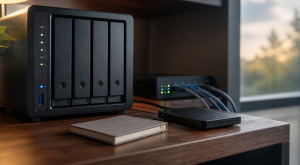
Consider two laptops, three phones, a NAS, and a photo application. Extra drive bays improve capacity but do not isolate credentials, location, or deletion. Put active files where applications need them, keep local history for fast mistakes, and place another encrypted copy beyond the home and primary account. Accept the design only after files and application data restore into a clean destination.
Rank the inventory before selecting tools. Protect photos, identity recovery material, documents, keys, and application databases first. Treat curated media metadata, VM images, and configuration as a second tier when they can be rebuilt at a cost. Exclude disposable caches explicitly. Give each retained tier a recovery point target, a recovery time target, and named local plus offsite destinations.
A storage product covers only part of the threat model. Write down how recovery proceeds after a lost laptop, failed NAS pool, locked cloud account, stolen credential, or propagated deletion. At least one procedure must work without the original host, its password store, or its healthy operating system.
Rollout And Recovery Plan
Roll out protection by risk. Inventory irreplaceable files and recovery secrets first, establish automated local history second, and seed the offsite or offline destination third. Before reorganizing source data, restore a representative file set and one application data set from a copy that does not depend on the production host.
Make the recovery drill broad enough to expose hidden dependencies. Restore an ordinary folder, a recently changed file, and application-owned data such as a database plus uploaded media. Verify names, timestamps, permissions, checksums where available, and application behavior on an isolated host. A restore that requires the still-healthy source cannot demonstrate recovery from source loss.
Implementation Details
Schedule the first seed, encryption-key change, retention change, and restore drill for a quiet period. Large jobs can saturate storage or upload capacity, while application backups may need a documented database sequence. Keep the current copy and prior recovery set until the new path passes validation.
- Write down the current state before changing anything: devices, accounts, IP addresses, storage paths, and who depends on the service.
- Pilot the recommendation with one device, one folder, one app, or one user before changing the entire home or lab.
- Keep the old path available until validation passes.
- Document rollback steps while the working setup is still fresh.
- Schedule a review date so firmware, subscriptions, certificates, and backups do not drift for months.
Record these details while you build, not after the memory has already gone fuzzy:
- Usable capacity after parity, mirrors, snapshots, and retention.
- Restore time for a realistic folder, VM, app database, or photo library.
- Offsite copy age and whether backup credentials are separate from normal user credentials.
- Drive health, scrub status, alert delivery, and UPS shutdown behavior.
Evidence To Collect
Keep evidence that answers a recovery question: a dated job record, the source and destination used, the restore command or interface, a file manifest or checksum sample, elapsed time, errors, and a note showing that the restored application opened correctly.
- A data inventory that separates irreplaceable, painful-to-recreate, and disposable data.
- Screenshots or logs from the latest backup job, snapshot job, scrub, SMART check, and offsite sync.
- A restore note showing what was restored, where it was restored, how long it took, and what did not come back cleanly.
- A credential note proving backup administration is separate from normal daily user access.
- Capacity math that includes snapshots, retention, app databases, photo growth, and replacement-drive budget.
Failure Signals
- Backups complete but nobody has restored from them.
- Snapshots and sync jobs live on the same system as the only important copy.
- Drive, UPS, or scrub alerts go to an inbox nobody checks.
- Cloud-only files, app databases, or metadata are missing from the backup plan.
Adopt, Pilot, Defer, Avoid
- Adopt: Adopt the design when it separates working data, local recovery, and offsite or offline recovery.
- Pilot: Pilot with one folder, one app export, or one photo subset before reorganizing the whole data set.
- Defer: Wait when the current setup is stable, backed up, monitored, and the proposed change is mostly curiosity.
- Avoid: Avoid treating RAID, snapshots, sync, or cloud drive alone as a complete backup plan.
Validation Checklist
- Restore one photo folder, one document folder, and one app backup to a clean test location.
- Confirm the backup account cannot delete every backup copy from the primary workstation.
- Verify cloud backup encryption key storage and recovery process.
- Unplug or isolate a rotated drive after backup completes.
- Review backup alerts monthly and record the last successful restore test date.
Common Mistakes
- Counting a synced cloud folder as both primary data and backup.
- Using the same admin account everywhere.
- Backing up media while forgetting app databases.
- Never testing restore speed before an emergency.
- Keeping all backup drives plugged in all the time.
Troubleshooting
| Symptom | Likely Cause | First Check |
|---|---|---|
| Restore fails | Backup captured files but missed app state, permissions, keys, or database exports. | Restore to a clean folder or VM and compare timestamps, permissions, and app behavior. |
| Storage feels slow | Network, disks, protocol overhead, Wi-Fi, or client limits are the real bottleneck. | Test wired transfer speed, disk health, and client link speed separately. |
| Backups look successful but feel risky | Jobs report completion without proving recovery. | Schedule a restore drill and record exactly what did and did not come back. |
Maintenance Cadence
A backup design decays as data, credentials, application versions, and storage destinations change. Put job review, restore sampling, capacity forecasting, encryption-key recovery, account access, and offsite rotation on a written calendar with an owner.
- Monthly: Check backup job status, drive health, free space, and the age of the newest offsite copy.
- Quarterly: Restore a real folder or app export to a clean location and confirm permissions, metadata, and versions.
- Yearly: Review capacity, replace aging drives or UPS batteries as needed, and confirm the offsite copy still matches the risk.
Reviewing successful jobs is necessary but insufficient. A scheduled restore must exercise permissions, database consistency, metadata, decryption material, and access to the separate destination while assuming the production machine and its cached credentials are unavailable.
When To Spend Money
Buy backup capacity only after calculating protected bytes, change rate, retention, growth, restore speed, interface needs, and the number of independent destinations. A discounted disk does not solve credential isolation, offsite placement, or an untested application restore.
| Stage | Signal | Practical Buying Guidance |
|---|---|---|
| Do not buy yet | Restore has not been tested, data has not been tiered, or the existing bottleneck is unknown. | Spend time on inventory, restore proof, labels, and documentation before buying another enclosure. |
| Small useful spend | Backups are working but the weak point is power, replacement media, or offsite transport. | UPS with shutdown signaling, external backup drive, spare drive, drive labels, or a safe storage case. |
| Larger upgrade | Capacity, restore time, drive bays, network throughput, or app-data reliability is now a measured constraint. | NAS, larger disks, 2.5GbE/10GbE path, offsite target, or a separate compute host. |
Useful Gear And Buyer Notes
The links are category searches beginning with external hard drive backup 12TB, not endorsements of a model or seller. Verify interface, capacity type, warranty, workload rating, encryption compatibility, return terms, and current specifications. Choose media that fits the documented rotation and restore procedure rather than the largest headline capacity.
Affiliate disclosure: As an Amazon Associate, TechGeeks may earn from qualifying purchases. The product links below are buying references, not a requirement to buy a specific brand or seller. Verify compatibility, seller quality, warranty, and current specs before ordering.
- Amazon search: external hard drive backup 12TB
- Amazon search: NAS 4 bay diskless
- Amazon search: UPS battery backup NAS
- Amazon search: fireproof document bag hard drive
- Amazon search: USB-C SSD 4TB
Related TechGeeks resources
- Media Server Storage Design: NAS, CIFS/NFS Mounts, Permissions, and Local Cache
- Backup and Disaster Recovery for Plex, Sonarr, Radarr, Tdarr, Prowlarr, and SABnzbd
- Monitoring and Health Checks for a Plex and Arr Homelab
What This Does Not Protect or Validate
This guide is documentation-backed. TechGeeks did not run a restore drill, measure recovery time, inspect a backup job, or test any linked product for this revision. Vendor pricing, retention, immutability, firmware, subscription terms, and cloud policies can change, so verify the current service documentation before a buying or migration decision.
The 3-2-1 count does not by itself provide access control, ransomware resistance, application consistency, business continuity, or disaster recovery. Those properties require separate credentials, appropriate immutability or offline handling, documented ordering, and recovery exercises tied to the actual data.
RAID, snapshots, sync, cloud drives, successful job logs, and an immutable-storage setting are useful controls, but they do not prove recovery until real files and application state are restored through an independent path. One successful sample restore also does not prove every protected data class, encryption key, permission, or future backup is recoverable.
Practical FAQ
Does the 3-2-1 backup rule still work in 2026?
The 3-2-1 rule is still a useful memory aid: keep three copies, on two kinds of storage, with one copy offsite. In 2026, add two operational checks: at least one copy should resist account compromise or ransomware, and restores must be tested on a schedule. The important next step is to validate the recommendation with one small test before treating it as the default.
What counts as offsite when cloud drives, NAS units, and rotated USB drives are all in play?
Match controls to named failures. Redundancy can cover a disk, version history can cover a mistaken edit, isolation can limit ransomware, an alternate administrator can address account lockout, and geographic separation can cover a building loss. None of those controls proves recoverability until its corresponding restore path succeeds.
How often should a restore be tested?
Test at least quarterly for irreplaceable household data and after any major backup, storage, credential, encryption, or application change. Increase the cadence when the recovery point or recovery time is stricter. Rotate samples across photos, documents, databases, permissions, and encryption keys, then schedule a periodic full-system recovery rehearsal; a repeated restore of the same easy folder leaves other failure modes untested.
References
- CISA StopRansomware Guide
- NIST: Protecting Data from Ransomware and Other Data Loss Events
- Veeam 3-2-1 Backup Rule
- Backblaze 3-2-1 Backup Strategy
Community discussion sources used for topic selection and reader-question framing:
- https://www.reddit.com/r/homelab/comments/1se0nsf/is_this_not_321_backup_strategy_acceptable/
- https://www.reddit.com/r/homelab/comments/1md0zk1/where_do_you_store_your_offsite_1_in_the_321/
Final Thought
The 3-2-1 rule still works as a starting point. The mature version is 3-2-1 plus separate credentials and restore evidence.
9 thoughts on “The 3-2-1 Backup Rule in 2026: Keep It, But Add Two Checks”