
NAS vs DAS vs Mini PC: Which Storage Setup Should You Actually Buy?
 Tech Guru
Do not start with the box. Start with the job. A NAS is best when several devices need shared storage, snapshots, user accounts, and network services. DAS is best when one workstation needs fast, direct storage. A mini PC is best when you need compute for Docker, Proxmox, media services, or sync tools and can attach storage separately. None of the three is a backup by itself.
Design principle: Separate working data, local recovery, and offsite recovery. One box can help, but one box should not be the whole plan.
The Short Version
- Do not start with the box. Start with the job. A NAS is best when several devices need shared storage, snapshots, user accounts, and network services. DAS is best when one workstation needs fast, direct storage. A mini PC is best when you need compute for Docker, Proxmox, media services, or sync tools and can attach storage separately. None of the three is a backup by itself.
- The practical decision is operational, not cosmetic: choose the path you can document, test, maintain, and recover.
- Use the decision matrix below, then prove the result with the validation checklist before making it the default.
Why This Matters Now
Choosing among a NAS, DAS, and mini PC starts with who needs the bytes and over what path. A video-editing workstation can own a DAS and tolerate host-bound access; several laptops need an always-on NAS; Docker or Proxmox workloads need compute plus an explicit storage mount. Recovery time then determines where the second and offsite copies live.
Home labs now run real household services: DNS, photos, media, backups, smart-home control, remote access, and sometimes work-adjacent systems.
The right answer is usually not the largest option. It is the design that is documented, recoverable, and quiet enough to live with.
Prices, firmware, subscriptions, and product bundles change quickly, so verify current model numbers and vendor terms before buying.
The comparison below separates file sharing, direct-attached throughput, service compute, drive expansion, power, and operator effort before laying out a migration and restore check. A category wins only if its access path survives normal use and the chosen backup can be restored without the NAS, DAS host, or mini PC that created it.
Recommended Baseline
Assign each role to a device: a NAS can own durable SMB or NFS shares and snapshots, a DAS can hold a workstation's active projects, and a mini PC can run containers or virtual machines against mounted storage. Put fast recovery on a different enclosure or disk and keep an offline or offsite copy beyond the primary device and its credentials.
Syncthing, cloud-drive clients, and NAS replication can make the same tree available from several places, but they can also relay a mistaken deletion or encrypted file. Keep versioned backup history outside that replication path and verify that its credentials and retention cannot be changed solely from the source mini PC or workstation.
What A NAS Does Best
A NAS is the cleanest answer when the storage must be available to multiple devices without leaving a desktop powered on. It gives you SMB shares, users, snapshots, drive health alerts, and a single place to put household or lab data.
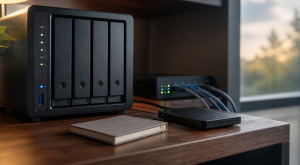
Buy a NAS when you care about shared access more than direct-attached speed. A two-bay NAS can work for simple backup and media storage. A four-bay unit gives better capacity planning and more comfortable drive replacement options.
What DAS Does Best
DAS is direct-attached storage. It belongs beside the workstation that needs it. If the job is video editing, photo work, temporary project storage, or fast local archive movement, a USB4 or Thunderbolt DAS may beat a small NAS on speed and cost.
The tradeoff is access. Sharing DAS over the network depends on the attached computer, its operating system, and its uptime. If that computer sleeps, travels, or gets rebuilt, everyone else loses the share.
Where A Mini PC Fits
A mini PC should be treated as compute first. It is excellent for Docker Compose stacks, Proxmox, Jellyfin, Immich, Syncthing, monitoring, and lightweight network services. It is not automatically a storage platform unless the storage path is planned.
The common pattern is mini PC for services, NAS for bulk storage, and a separate backup target. That avoids buying an expensive NAS only because one app needs a better CPU.
Decision Steps
Write down the primary workflow: shared files, backup target, media serving, photo backup, virtualization, or direct workstation storage. Then decide whether the bottleneck is network access, CPU, drive bays, or backup discipline.
If the answer is shared storage, start with a NAS. If the answer is app hosting, start with a mini PC. If the answer is one workstation with large active projects, start with DAS.
Decision Matrix
| Choice | Best Fit | Watch Points |
|---|---|---|
| NAS | Shared files, snapshots, media libraries, Time Machine or Windows backups, and always-on storage. | Drive compatibility, network speed, app lock-in, noise, and backup design. |
| DAS | One creator workstation, fast direct editing, scratch space, or local archive staging. | Usually attached to one machine, weaker sharing story, and still needs off-box backup. |
| Mini PC | Docker, Proxmox, Home Assistant, sync tools, Plex/Jellyfin compute, and automation. | Storage expansion, USB reliability, cooling, and separation of app data from bulk files. |
Decision Worksheet
Complete the worksheet with simultaneous clients, the largest active file set, required network rate, application CPU needs, bay growth, noise and power limits, and acceptable downtime. Those answers reveal whether the primary constraint is shared access, direct workstation performance, compute, or recovery, which is the actual NAS-versus-DAS-versus-mini-PC decision.
| Worksheet Item | What To Write Down | Why It Matters |
|---|---|---|
| Primary question | Should I buy a NAS, attach a DAS to a mini PC, or build both? | This keeps the article tied to the reader's real decision instead of drifting into a generic product comparison. |
| Affected systems | People, apps, and devices that create or need the files, photos, backups, databases, or shares. | Readers should know who and what they are protecting before they choose hardware, software, or a cloud service. |
| Failure model | Deletion, ransomware, drive failure, bad sync, account lockout, theft, fire, and hardware replacement. | Different failures need different controls. This row prevents RAID, sync, VPN, or MFA from being treated as magic. |
| Proof test | Restore a real folder, one recently changed file, and one app-owned data set to a clean location. | A recommendation is not proven until it survives a small, repeatable test using realistic data, clients, or accounts. |
| Rollback path | Keep the original copy and credentials available until restores, permissions, and metadata are confirmed. | A reversible change is less stressful, easier to explain, and less likely to turn a weekend project into an outage. |
| Measurement to capture | Usable capacity after parity, mirrors, snapshots, and retention. | Numbers, logs, screenshots, or restore notes give the reader confidence that the decision was based on evidence. |
Split Storage And Compute On Purpose
The cleanest home design is often not one box. A NAS is good at keeping disks, shares, snapshots, alerts, and replacement workflows boring. A mini PC is good at compute: Docker, Proxmox, media-server apps, DNS, monitoring, and experiments. A DAS is fast and simple when one host owns the data, but it becomes risky when several services expect always-on shared storage.
A practical split looks like this: the NAS owns durable data and backup targets, the mini PC owns services, and the network between them is sized for the work. 1GbE is fine for documents, photos, and light media. 2.5GbE is the sweet spot for many homes because it improves NAS transfers without the heat and cost of 10GbE. 10GbE starts to make sense for SSD-backed storage, video editing from the NAS, large VM moves, or multiple clients doing heavy backups at once.
Real-World Example
For a household with two laptops, three phones, and a growing photo library, place shared photos and documents on the NAS, run photo or media applications on a mini PC if the NAS CPU is the constraint, and reserve DAS for a workstation's active projects. Copy recoverable data to a separate local target and an offline or offsite path, then prove the layout by restoring a sample photo folder and application database to a clean machine.
Classify data before assigning hardware. Photos and documents need a NAS or DAS working path plus independent history; container databases and virtual-machine configuration need application-aware exports; replaceable media may justify less costly protection; scratch space and transcode cache need none. Size the network, disks, and backup target from those tiers instead of buying bays for data that can be recreated.
A NAS purchase answers shared storage, a DAS purchase answers one host's local capacity, and a mini PC purchase answers compute; none answers every recovery event. Write the response to a failed NAS pool, unplugged USB enclosure, dead mini-PC boot drive, stolen laptop, and propagated deletion, then restore through a path that does not require the failed component.
Rollout And Recovery Plan
Migrate one role at a time: establish the backup destination, bring up the NAS share, DAS volume, or mini-PC mount, copy rather than move the initial data set, and compare file counts, checksums, or application-visible content as appropriate. Keep the original read-only until clients, permissions, and a restore test pass; only then change automatic sync or application paths.
Test the boundaries selected in the comparison. For a NAS, restore a folder through a replacement SMB or NFS path; for DAS, attach the backup to another computer; for a mini PC, recreate a service and reconnect its storage. Include a recent file and an application database, then inspect names, timestamps, ownership, permissions, and application behavior without relying on the healthy source device.
Implementation Details
Schedule the migration while shared files and container writes can be paused. Stop or quiesce applications before the final copy, record existing SMB, NFS, and bind-mount paths, and change one client or service at a time. That prevents a workstation from writing to the old DAS while a photo app indexes the new NAS copy or mini-PC containers use mismatched permissions.
- Write down the current state before changing anything: devices, accounts, IP addresses, storage paths, and who depends on the service.
- Pilot the recommendation with one device, one folder, one app, or one user before changing the entire home or lab.
- Keep the old path available until validation passes.
- Document rollback steps while the working setup is still fresh.
- Schedule a review date so firmware, subscriptions, certificates, and backups do not drift for months.
Record these details while you build, not after the memory has already gone fuzzy:
- Usable capacity after parity, mirrors, snapshots, and retention.
- Restore time for a realistic folder, VM, app database, or photo library.
- Offsite copy age and whether backup credentials are separate from normal user credentials.
- Drive health, scrub status, alert delivery, and UPS shutdown behavior.
Evidence To Collect
Keep a decision record with the selected topology, mounted paths, share permissions, actual usable capacity, observed transfer behavior, and the result of a clean restore to an alternate device. A healthy pool screenshot alone cannot compare NAS access, DAS host dependence, or mini-PC service recovery; the evidence must follow the data through the path you intend to operate.
- A data inventory that separates irreplaceable, painful-to-recreate, and disposable data.
- Screenshots or logs from the latest backup job, snapshot job, scrub, SMART check, and offsite sync.
- A restore note showing what was restored, where it was restored, how long it took, and what did not come back cleanly.
- A credential note proving backup administration is separate from normal daily user access.
- Capacity math that includes snapshots, retention, app databases, photo growth, and replacement-drive budget.
Failure Signals
- Backups complete but nobody has restored from them.
- Snapshots and sync jobs live on the same system as the only important copy.
- Drive, UPS, or scrub alerts go to an inbox nobody checks.
- Cloud-only files, app databases, or metadata are missing from the backup plan.
Adopt, Pilot, Defer, Avoid
- Adopt: Adopt the design when it separates working data, local recovery, and offsite or offline recovery.
- Pilot: Pilot with one folder, one app export, or one photo subset before reorganizing the whole data set.
- Defer: Wait when the current setup is stable, backed up, monitored, and the proposed change is mostly curiosity.
- Avoid: Avoid treating RAID, snapshots, sync, or cloud drive alone as a complete backup plan.
Validation Checklist
- Copy a large test folder and record real transfer speed over the connection you will use every day.
- Create one test user and confirm permissions work from Windows, macOS, and a phone if those clients matter.
- Pull one drive or simulate a failed disk only if the platform documentation says the test is safe.
- Restore a small folder from the backup target before trusting the design.
- Confirm alerts reach an email address or app you actually check.
Common Mistakes
- Buying a NAS for apps when a mini PC plus simpler storage would be easier to maintain.
- Calling RAID a backup.
- Buying a 10GbE NAS while every client still uses Wi-Fi.
- Using consumer USB drives as the only copy of important data.
- Forgetting that photos, documents, and app databases need different retention plans.
Troubleshooting
| Symptom | Likely Cause | First Check |
|---|---|---|
| Restore fails | Backup captured files but missed app state, permissions, keys, or database exports. | Restore to a clean folder or VM and compare timestamps, permissions, and app behavior. |
| Storage feels slow | Network, disks, protocol overhead, Wi-Fi, or client limits are the real bottleneck. | Test wired transfer speed, disk health, and client link speed separately. |
| Backups look successful but feel risky | Jobs report completion without proving recovery. | Schedule a restore drill and record exactly what did and did not come back. |
Maintenance Cadence
Review NAS pool health and free space, DAS cable and disk health, mini-PC boot storage and mount availability, and the separate backup job on an explicit cadence. Repeat a restore after changing a filesystem, share protocol, container path, credential, or enclosure because the original hardware inventory will not expose a newly broken recovery dependency.
- Monthly: Check backup job status, drive health, free space, and the age of the newest offsite copy.
- Quarterly: Restore a real folder or app export to a clean location and confirm permissions, metadata, and versions.
- Yearly: Review capacity, replace aging drives or UPS batteries as needed, and confirm the offsite copy still matches the risk.
A meaningful restore drill differs by role: pull NAS data to a non-NAS destination, attach the DAS backup to a second host, and recreate a mini-PC service from its Compose definition, configuration, and data backup. Confirm share access controls, file ownership, the application database, and encryption keys without using the primary device's live state; green replication or snapshot status does not establish that.
When To Spend Money
Spend for a demonstrated constraint: NAS bays and networking for concurrent shared access, reliable USB4 or Thunderbolt DAS for local workstation throughput, mini-PC CPU and memory for applications, and separate media for backup. Map each product row to client count, usable capacity, transfer need, codec or virtual-machine load, and recovery target before using the links.
| Stage | Signal | Practical Buying Guidance |
|---|---|---|
| Do not buy yet | Restore has not been tested, data has not been tiered, or the existing bottleneck is unknown. | Spend time on inventory, restore proof, labels, and documentation before buying another enclosure. |
| Small useful spend | Backups are working but the weak point is power, replacement media, or offsite transport. | UPS with shutdown signaling, external backup drive, spare drive, drive labels, or a safe storage case. |
| Larger upgrade | Capacity, restore time, drive bays, network throughput, or app-data reliability is now a measured constraint. | NAS, larger disks, 2.5GbE/10GbE path, offsite target, or a separate compute host. |
Useful Gear And Buyer Notes
The product links below are intentionally search links, starting with 2 bay NAS 2.5GbE, because model numbers, bundles, and prices change quickly. Use them to compare categories, then verify exact specifications against the article's decision points before buying. For infrastructure gear, prioritize firmware support, replaceability, warranty, idle power, and recovery behavior over headline specs.
Affiliate disclosure: As an Amazon Associate, TechGeeks may earn from qualifying purchases. The product links below are buying references, not a requirement to buy a specific brand or seller. Verify compatibility, seller quality, warranty, and current specs before ordering.
- Amazon search: 2 bay NAS 2.5GbE
- Amazon search: 4 bay NAS diskless
- Amazon search: USB4 DAS enclosure
- Amazon search: N100 mini PC dual 2.5GbE
- Amazon search: NAS hard drive 12TB
- Amazon search: 2.5GbE switch
Related TechGeeks resources
- Media Server Storage Design: NAS, CIFS/NFS Mounts, Permissions, and Local Cache
- Backup and Disaster Recovery for Plex, Sonarr, Radarr, Tdarr, Prowlarr, and SABnzbd
- Monitoring and Health Checks for a Plex and Arr Homelab
What This Does Not Protect or Validate
Exact NAS features, USB bridge behavior, mini-PC expandability, network speeds, firmware support, and warranty depend on the model and revision. Confirm drive compatibility, filesystem support, interface bandwidth, idle behavior, and the supported update lifecycle in current vendor documentation; this topology comparison includes no TechGeeks performance, power, or reliability benchmark.
Choosing the right box still leaves security and disaster recovery work. A compromised NAS administrator can expose snapshots, a DAS can disappear with its workstation, and a mini PC can fail with every container it hosts. Limit credentials, encrypt portable and offsite copies, and maintain a separate restore path; this article supplies a decision method, not validation of your hardware, access controls, or backup.
RAID preserves availability through selected disk failures, NAS snapshots retain prior states on that system, sync distributes current state, and cloud storage may provide version history under provider terms. None substitutes for an independently accessible, tested copy that can rebuild shares or application data after the primary NAS, DAS host, or mini PC is unavailable.
Practical FAQ
Should I buy a NAS, attach a DAS to a mini PC, or build both?
Do not start with the box. Start with the job. A NAS is best when several devices need shared storage, snapshots, user accounts, and network services. DAS is best when one workstation needs fast, direct storage. A mini PC is best when you need compute for Docker, Proxmox, media services, or sync tools and can attach storage separately. None of the three is a backup by itself. The important next step is to validate the recommendation with one small test before treating it as the default.
When is USB storage risky enough to avoid for always-on services?
USB becomes a poor always-on service path when the enclosure drops under load, its bridge hides useful disk health, the connector can be disturbed, sleep or power behavior is untested, or one attached host becomes an unacceptable dependency. Pilot the exact enclosure, cable, filesystem, and reboot or reconnect path; keep application database backups elsewhere and choose NAS or internal storage if observed disconnects cannot be tolerated.
Which part of the setup should handle storage, compute, and backup?
Assign storage according to access: the NAS owns durable multi-client shares, DAS owns high-throughput data for one workstation, and the mini PC owns service compute and configuration rather than the only copy. Backup should terminate on a separate failure domain and include application-aware data. This split lets you replace compute without moving bulk storage and restore either side from documented paths.
References
- Synology NAS Selector
- QNAP: Choosing a Four-Bay NAS
- TrueNAS SCALE Hardware Guide
- OWC ThunderBay 4 Specifications
- CISA StopRansomware Guide: Backup and Segmentation Guidance
Community discussion sources used for topic selection and reader-question framing:
- https://www.reddit.com/r/homelab/comments/1t4nsjz/mini_pc_das_or_mini_pc_nas/
- https://www.reddit.com/r/homelab/comments/1qiskmr/mini_pc_nasdas_or_nas/
Final Thought
The best setup is usually not the most expensive one. Buy storage for the access pattern, buy compute for the services, and design backup as a separate system from day one.
One thought on “NAS vs DAS vs Mini PC: Which Storage Setup Should You Actually Buy?”