DNS Drift: Why Your Router, Browser, VPN, and Phone Use Different Resolvers
 Tech Guru
Quick Answer
DNS drift happens when different parts of the same network use different resolver paths. Your router might advertise AdGuard Home or Pi-hole through DHCP, Windows might still have a static DNS server from an old test, Chrome might use Secure DNS, a VPN client might push split-DNS rules, and an Android phone might use Private DNS even while it is on your Wi-Fi. That is not automatically bad. Encrypted DNS can protect users on public networks, and split DNS is normal for VPNs. It becomes a problem when the actual resolver path no longer matches your policy. The fix is not "flush DNS" and hope. The fix is to write down the resolver that should answer in each network state, then prove it from the client, the browser, the VPN, the phone, and the DNS server logs. This behavior was fact-checked against current Microsoft, Chrome, Firefox, Android, Apple, IETF, and independent DNS guidance on July 15, 2026. Browser and operating-system defaults change, managed policy can override a visible setting, and support for IETF Discovery of Network-designated Resolvers (DNR, RFC 9463) is uneven. Treat the menus below as a current audit map, then verify the actual resolver path on the installed build of each client. For a home network or homelab, the practical goal is simple: 1. Pick the DNS source of truth for each network state. 2. Make the router, IPv6 settings, operating systems, browsers, VPN clients, and phones match that policy. 3. Document intentional exceptions. 4. Test from the client that is actually failing.Resolver Path Map
Start by separating the application lookup from the resolver it reaches. A normal application usually asks the operating system resolver. A browser, VPN client, mobile DNS feature, or app-specific resolver can choose a different path.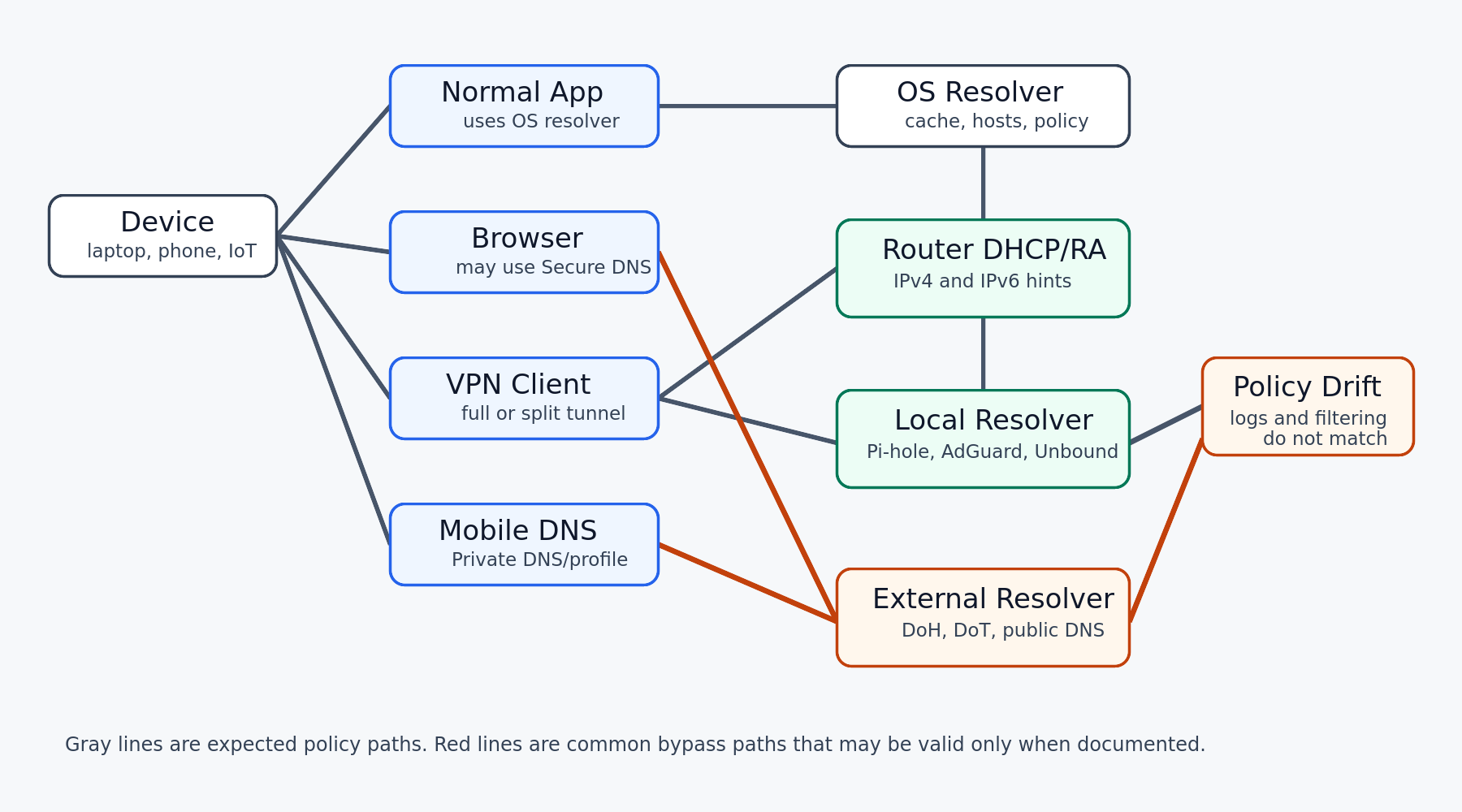
Interactive Resolver Drill-Down
Use these scenarios when you are trying to identify which layer owns a lookup.Scenario 1: Normal LAN client
Expected path: app to operating system resolver to router-advertised DNS to local resolver.
Good evidence: Resolve-DnsName, dig, and local DNS logs agree. The client appears in Pi-hole, AdGuard Home, Unbound, or router DNS logs.
Likely drift: static DNS on the client, a second DHCP server, or IPv6 DNS that does not match IPv4.
Scenario 2: Browser with Secure DNS
Expected path: browser either follows the current DNS provider or intentionally uses a configured DNS over HTTPS provider.
Good evidence: command-line DNS and browser behavior are tested separately. Browser settings show whether Secure DNS is off, automatic, default, or custom.
Likely drift: internal names work in PowerShell or Terminal but fail in Chrome, Edge, Firefox, or a separate browser profile.
Scenario 3: VPN connected
Expected path: the VPN applies its configured DNS servers and suffix-routing policy; full or split IP tunneling alone does not establish that policy.
Good evidence: disconnected and connected tests are recorded separately. Internal names resolve through the VPN resolver when connected.
Likely drift: browser DNS over HTTPS still uses an outside resolver, or split-DNS suffixes are missing from the VPN profile.
Scenario 4: Phone on Wi-Fi
Expected path: phone uses the Wi-Fi DNS policy unless Private DNS, a DNS profile, cellular fallback, or a VPN app changes it.
Good evidence: cellular is disabled during Wi-Fi testing, resolver logs show the phone, and Private DNS or VPN profiles are checked.
Likely drift: Android Private DNS points to a provider hostname, iOS has a DNS profile, or an app uses local VPN mode for filtering.
Scenario 5: IPv6 surprise
Expected path: IPv4 and IPv6 advertise equivalent DNS policy, or IPv6 DNS is intentionally disabled until it can be controlled.
Good evidence: IPv6 resolver addresses and query transport are checked separately from A/AAAA record type.
Likely drift: router advertisements publish ISP IPv6 DNS while IPv4 DHCP points to a local filtering resolver.
What DNS Drift Means
Most home network DNS designs start at the router. The router advertises DNS servers to clients, often itself, a local resolver, or a filtered public resolver such as Quad9, Cloudflare for Families, NextDNS, AdGuard DNS, or OpenDNS. That router setting is important, but it is not the whole design. DHCP-provided DNS is an offer to clients that accept DHCP settings. It does not override every other resolver path. DNS drift usually appears in one of these places: - A client has static DNS configured at the operating system layer. - IPv6 router advertisements or DHCPv6 publish different DNS servers than IPv4 DHCP. - A browser uses DNS over HTTPS through Secure DNS. - A VPN client changes DNS only when the tunnel is connected. - Android Private DNS or an iOS/macOS DNS profile points the device somewhere else. - A security, filtering, or parental-control app uses local VPN mode to capture DNS. - An application ships its own resolver behavior. For a normal application using the operating system resolver, the path may include local cache, host files, OS policy, VPN name-resolution policy, interface DNS settings, and router-provided DNS. A browser with custom DNS over HTTPS can step outside that normal path. That is the operational lesson: test the exact app, exact device, exact network state, and exact hostname.Where DNS Settings Can Conflict
Use this matrix as a starting point when the network "has DNS problems" but only some devices are affected. | Layer | What It Controls | What Can Go Wrong | How To Prove It | | --- | --- | --- | --- | | Router DHCP | DNS advertised to normal LAN clients | Guest VLANs, old router mode, or second DHCP server advertises a different resolver | Check lease options and router DNS logs | | IPv6 RA/DHCPv6 | DNS advertised over IPv6 | Clients use ISP IPv6 DNS while IPv4 uses local DNS | Check advertised IPv6 resolvers and query them over IPv6; test both A and AAAA records | | Operating system | Per-interface resolver settings | Old static DNS overrides DHCP | Use `ipconfig /all`, `Get-DnsClientServerAddress`, `scutil --dns`, or `resolvectl status` | | Browser | Browser traffic using Secure DNS or DNS over HTTPS | Browser bypasses Pi-hole, AdGuard Home, split DNS, or router logs | Check Secure DNS settings and compare browser behavior to command-line DNS | | VPN | Tunnel DNS, split DNS, and internal suffixes | Internal names work only on some apps, or public DNS bypasses expected policy | Test connected and disconnected states separately | | Mobile device | Wi-Fi DNS, cellular DNS, Private DNS, profiles, app VPNs | Phone behaves differently on Wi-Fi, cellular, and VPN | Disable cellular for Wi-Fi tests and check Private DNS or profiles | Do not treat "primary" and "secondary" DNS as a reliable active-passive pair. Clients vary. Some retry, rotate, cache, race, or mark resolvers down. If two resolvers are handed to the same client, they should normally give equivalent policy answers.Common Symptoms
DNS drift often looks like a random outage because each layer still works in isolation. Typical signs: - Local names such as `nas.home.arpa` work in PowerShell but fail in Chrome. - Pi-hole or AdGuard Home logs are empty while the device is clearly browsing. - A laptop works on Ethernet but not Wi-Fi. - VPN internal names work in one browser profile but not another. - Blocking works for smart TVs and IoT devices but not phones. - A problem disappears when mobile data is turned off. - IPv4 lookups follow the policy, but IPv6 lookups do not. - Flushing DNS helps briefly because a cache changed, not because the resolver path was fixed. - Guest Wi-Fi behaves differently from the trusted LAN even though both SSIDs use the same access points. - Internal names work on a laptop but fail inside a container or virtual machine. The first useful question is not "Which DNS server is fastest?" It is "Which component answered this lookup, and was that the component I intended?"Pick One DNS Policy
Before touching settings, write the policy in plain language. Examples: - Home LAN clients should use `192.168.10.10` and `fd00:10::10`, which are AdGuard Home resolvers. - Guest Wi-Fi should use public filtered DNS and should not resolve internal hostnames. - IoT devices should use router DNS only, with no access to private zones except the few records they need. - WireGuard clients should use VPN DNS for `home.arpa`, but public names can use the local network. - Full-tunnel VPN clients should use the VPN resolver for public and private names. Then document exceptions. A travel laptop may keep browser Secure DNS enabled for public Wi-Fi. A work VPN may need its own DNS while connected. A phone may use Private DNS off the home network. Those are valid choices when they are intentional. For background on the resolver design itself, use the existing TechGeeks guide: [Homelab DNS Guide: Local Names, Ad Blocking, and Reliability](https://www.techgeeks.org/homelab-dns-local-names-ad-blocking/).Source-Of-Truth Worksheet
For a real audit, fill this out before changing settings. The point is to separate design intent from observed behavior. | Network State | Expected Resolver | Internal Names | Filtering | Exception Notes | | --- | --- | --- | --- | --- | | Trusted LAN | Local DNS pair | Yes | Yes | Main workstations and servers | | Guest Wi-Fi | Router or filtered public DNS | No | Optional | No private zones | | IoT VLAN | Local DNS or router DNS | Limited | Yes | Avoid exposing admin hostnames | | VPN disconnected | Local network DNS | No private remote zones | Local policy | Baseline test | | VPN connected, split tunnel | VPN DNS for private suffixes | Yes for VPN suffixes | Mixed by design | Test both public and private names | | VPN connected, full tunnel | VPN DNS | Yes | VPN policy | Browser DoH may still be separate | | Mobile Wi-Fi | Wi-Fi DNS policy | Depends on VLAN | Depends on policy | Disable cellular during test | | Mobile cellular | Carrier, VPN, or profile DNS | Usually no | Carrier/profile policy | Do not compare directly to Wi-Fi | This worksheet also prevents accidental overcorrection. If a phone is intentionally allowed to use Private DNS outside the home, the fix is documentation and verification, not forcing every state into one resolver.Audit The Current DNS Path
Capture the current state before you change anything. Save the output if this is a production or family-critical network.Evidence And Test Method
The resolver behaviors and commands in this article are documentation-backed. TechGeeks did not independently reproduce every browser, mobile OS, VPN, router, DHCPv6, container, and enterprise-policy combination. The audit becomes local evidence only when you run it on the affected client and preserve the results. Use one device, one hostname, and one network state at a time. Record UTC time, OS/browser/VPN versions, active interfaces, DNS policy, cache state, the command output, and matching resolver or firewall logs. Test an internal name, an allowed public name, a deliberately blocked name, IPv4 and IPv6, and both VPN-disconnected and VPN-connected states where applicable. A pass requires the expected resolver to receive the query, the client to receive the expected answer, and an intentional bypass test to fail or be documented. Repeat after lease renewal and reboot so a transient cache result is not mistaken for a durable fix. Windows: ```powershell ipconfig /all Get-DnsClientServerAddress | Sort-Object InterfaceAlias, AddressFamily Get-DnsClientNrptPolicy Resolve-DnsName www.techgeeks.org Resolve-DnsName www.techgeeks.org -Type AAAA ``` Query a specific resolver: ```powershell Resolve-DnsName internal.home.arpa -Server 192.168.10.10 Resolve-DnsName www.techgeeks.org -Server 192.168.10.10 Resolve-DnsName www.techgeeks.org -Server 1.1.1.1 ``` What to look for on Windows: - Multiple active adapters with different DNS servers. - VPN, virtual switch, Docker, Hyper-V, or security-agent adapters. - Static DNS entries on Wi-Fi or Ethernet. - IPv6 DNS servers that do not match the IPv4 policy. - Name Resolution Policy Table entries from VPN or enterprise policy. Linux: ```bash resolvectl status nmcli dev show | grep -E 'GENERAL.DEVICE|GENERAL.CONNECTION|IP4.DNS|IP6.DNS' cat /etc/resolv.conf dig www.techgeeks.org dig AAAA www.techgeeks.org ``` On systems using `systemd-resolved`, pay attention to per-link DNS and routing domains. A VPN link may own only a suffix such as `home.arpa`, while unmatched names use the default-route link. Apps that read `/etc/resolv.conf` directly may behave differently than apps using the system resolver. macOS: ```bash networksetup -listallnetworkservices scutil --dns networksetup -getdnsservers Wi-Fi dig www.techgeeks.org dig AAAA www.techgeeks.org ``` If the macOS network service is not named `Wi-Fi`, use the service name returned by `networksetup -listallnetworkservices`. Router and DNS server checks: - Confirm LAN DHCP advertises the intended DNS servers. - Check each guest network and VLAN separately. - Check IPv6 router advertisement DNS and DHCPv6 DNS. - Review Pi-hole, AdGuard Home, Unbound, dnsmasq, or router DNS logs while the client performs a test lookup. - Confirm the client appears with the expected IP address. - Confirm the router is not forwarding to an unexpected ISP resolver. - Confirm no second router or mesh node is also serving DHCP. If you enforce local DNS with firewall rules, cover both TCP and UDP port `53` for IPv4 and IPv6. That still does not fully control DNS over HTTPS or DNS over TLS. Those need endpoint policy, browser policy, resolver policy, or more deliberate egress controls.Detailed Test Walkthrough
Use one public name and one internal name for the entire test. For example: - Public name: `www.techgeeks.org` - Internal name: `nas.home.arpa` - Known blocked test: use a domain from your filtering product's test page, not a random live domain Then test in this order.1. Baseline The LAN
Disconnect VPNs and close browsers. Test from the operating system first. Windows: ```powershell Resolve-DnsName www.techgeeks.org Resolve-DnsName nas.home.arpa Resolve-DnsName www.techgeeks.org -Server 192.168.10.10 ``` Linux or macOS: ```bash dig www.techgeeks.org dig nas.home.arpa dig @192.168.10.10 www.techgeeks.org ``` Expected result: the default query and direct query to the local resolver agree for names that should use local DNS.2. Watch The Resolver Logs
First confirm query logging is enabled and identify its actual destination. A service journal may contain only startup/error messages, not per-query records. For example, [Unbound query logging](https://unbound.docs.nlnetlabs.nl/en/latest/manpages/unbound.conf.html) is disabled by default and adds overhead. Enable it only for an authorized, time-limited test, protect the captured names, and restore the prior logging policy afterward. The following commands inspect common log locations, not universal query-log sources. Pi-hole: ```bash tail -f /var/log/pihole/pihole.log ``` Unbound: ```bash journalctl -u unbound -f ``` AdGuard Home: ```bash journalctl -u AdGuardHome -f ``` Acceptance target, not an observed result: a fresh lookup appears in the intended resolver's verified query log at the matching time. If nothing appears, check client/browser caches, existing connections, log configuration and upstream forwarding before inferring another path. A page load alone does not prove that a new DNS query occurred.3. Test Browser Behavior Separately
Open the same names in the browser after checking the Secure DNS setting. Check the common browsers: - Chrome and Chromium browsers: `Settings > Privacy and security > Security > Use secure DNS`. Chrome's current automatic mode may upgrade the existing provider and can fall back to unencrypted DNS if that upgrade fails; a manually selected custom provider does not use that same fallback. Managed policy can change either behavior. - Microsoft Edge: `Settings > Privacy, search, and services > Security > Use secure DNS`. - Firefox: `Settings > Privacy & Security > DNS over HTTPS`. Current protection levels include Default, Increased, and Max. Default can use network, VPN, enterprise, parental-control, and local-network heuristics; Max favors the selected secure resolver and prompts rather than silently behaving like Default. - Safari: usually follows Apple system and network DNS settings; encrypted DNS is normally handled by profiles, MDM, DNS-capable apps, or platform features. Expected result: browser behavior matches the policy you documented. It does not have to match the command line if you intentionally configured browser Secure DNS as an exception.4. Test VPN States
Run tests once with the VPN disconnected and again after it connects. Do not mix the results. Windows: ```powershell Get-VpnConnection | Format-Table Name, ConnectionStatus, SplitTunneling, DnsSuffix Get-DnsClientNrptPolicy Resolve-DnsName nas.home.arpa Resolve-DnsName www.techgeeks.org ``` WireGuard on Linux: ```bash sudo wg show grep -R -E '^\s*(DNS|AllowedIPs)\s*=' /etc/wireguard 2>/dev/null resolvectl status ``` Acceptance target: public and internal queries follow the DNS policy recorded for this VPN profile. Do not infer resolver selection from full versus split IP routing alone. If browser Secure DNS stays active during VPN use, test that browser separately.5. Test IPv6 As Its Own Path
IPv6-advertised resolvers can differ from IPv4-advertised resolvers. An AAAA query requests an IPv6 address record; it does not prove the query traveled over IPv6. With BIND dig installed and an authorized, reachable IPv6 resolver address assigned to DNS6, this read-only example tests transport explicitly. It tests that resolver directly, not automatic app selection; compare both paths. See the [BIND dig manual](https://bind9.readthedocs.io/en/latest/manpages.html#dig-dns-lookup-utility). ```bash dig -6 @"${DNS6:?Set the intended IPv6 resolver address}" www.techgeeks.org A +time=3 +tries=1 dig -6 @"${DNS6:?Set the intended IPv6 resolver address}" www.techgeeks.org AAAA +time=3 +tries=1 ``` Windows: ```powershell Get-DnsClientServerAddress -AddressFamily IPv6 Resolve-DnsName www.techgeeks.org -Type AAAA ``` Linux: ```bash resolvectl dns dig AAAA www.techgeeks.org ip -6 route ``` macOS: ```bash scutil --dns | grep -A3 'nameserver' dig AAAA www.techgeeks.org netstat -rn -f inet6 ``` Expected result: IPv6 DNS follows the same policy as IPv4, or IPv6 DNS is intentionally not advertised until it can be controlled.Browser Secure DNS And VPN Caveats
Browser Secure DNS is useful, especially on untrusted networks. It encrypts DNS queries between the browser and the selected resolver. The tradeoff is that the browser may not use the same resolver as the rest of the device. Chrome in automatic mode may try to upgrade the current DNS provider to that provider's encrypted service when Chrome knows the match. That is different from setting a custom provider. Firefox also has protection levels and local-network exceptions. Managed browsers can have policy-controlled behavior. For a home network where Pi-hole, AdGuard Home, or a router resolver is the intended recursive resolver, set browsers to use the current provider, default protection, or off. For travel devices, leaving Secure DNS enabled may be the better choice. Just document that exception so it is not mistaken for a broken router. VPNs have similar nuance. A full-tunnel VPN should usually own DNS while connected. A split-tunnel VPN may send internal domains to VPN DNS and public domains to the local resolver. Browser DNS over HTTPS can still send DNS to an outside resolver; the VPN might carry that HTTPS traffic, but the VPN DNS server did not answer the query.Mobile DNS Checks
Phones move between Wi-Fi, cellular, VPNs, DNS profiles, app-level filtering, and carrier networks. Test them as their own class of device. Android: - Check `Settings > Network & internet > Private DNS`. - `Off` or `Automatic` usually follows the network more closely than a pinned provider hostname, but vendor skins and managed-device policy can rename or control the menu. - A configured provider hostname uses encrypted DNS and can bypass home router DNS on Wi-Fi. - If testing home DNS, temporarily disable cellular data so the phone cannot silently change paths. iPhone and iPad: - Check the Wi-Fi network details for manual DNS entries. - Check `Settings > General > VPN & Device Management` for DNS, MDM, or VPN profiles. - If iCloud Private Relay or a privacy VPN affects Safari behavior, disable it only long enough to isolate the test. - Remember that manual DNS on one Wi-Fi network is not the same as cellular-wide DNS policy. Correlate a fresh phone lookup with verified query logs and the active Wi-Fi/VPN state. A missing entry is inconclusive until caches, existing connections, forwarding and logging configuration have been checked.Containers, VMs, And Lab Hosts
Homelabs add another source of DNS drift: virtualization. Docker containers, Kubernetes pods, Hyper-V guests, Proxmox virtual machines, and WSL environments may inherit DNS from the host, the bridge network, the container runtime, or a cluster DNS service. That does not mean they are broken. It means they need their own test. Check these common places: - Docker daemon DNS settings. - Container `/etc/resolv.conf`. - Kubernetes CoreDNS forwarding rules. - VM network adapter mode: bridged, NAT, isolated, or host-only. - Hyper-V Default Switch and WSL DNS behavior. - Proxmox host resolver settings and guest DHCP settings. Quick checks: ```bash docker exec CONTAINER_NAME cat /etc/resolv.conf docker exec CONTAINER_NAME getent hosts www.techgeeks.org kubectl -n kube-system get configmap coredns -o yaml ``` If the host follows your DNS policy but a container does not, fix the container or cluster DNS path directly. Do not keep changing router DNS and expect that to repair an overlay network.Validation Checklist
Run this checklist after making changes. 1. LAN client with VPN disconnected resolves a public hostname through the intended resolver. 2. LAN client resolves an internal hostname only through the resolver that owns the internal zone. 3. Browser behavior matches command-line behavior, or the browser exception is documented. 4. VPN disconnected and VPN connected states are tested separately. 5. Split-DNS suffixes resolve through the VPN when connected. 6. Guest Wi-Fi cannot resolve private names unless that is intentional. 7. IoT VLAN devices appear in the expected DNS logs. 8. Android Private DNS and iOS/macOS DNS profiles are checked. 9. IPv6 DNS matches the IPv4 policy, or IPv6 DNS is intentionally disabled until it can be enforced. 10. Containers, VMs, or WSL environments are tested separately if they are in scope. 11. DNS server logs, client commands, and browser tests all support the same conclusion. Flush caches only after you know what changed. Windows: In an elevated Windows terminal, flush the client cache after recording the changed setting: ```powershell ipconfig /flushdns ``` Do not release all DHCP leases as a cache-clearing step: that can disconnect remote access. If changed DHCP options require a lease refresh, arrange local console access and use the [Microsoft ipconfig documentation](https://learn.microsoft.com/en-us/windows-server/administration/windows-commands/ipconfig) to target only the intended adapter. Linux with `systemd-resolved`: ```bash sudo resolvectl flush-caches resolvectl status ``` macOS: ```bash sudo dscacheutil -flushcache sudo killall -HUP mDNSResponder ```What This Does Not Protect or Validate
Aligned DNS gives you predictable policy and better evidence. It is not a complete security control. It does not: - Encrypt web traffic by itself. - Hide destination IP addresses. - Remove cookies, tracking scripts, or browser fingerprinting. - Replace endpoint protection. - Stop malware that uses hard-coded IPs, its own encrypted resolver, or an allowed compromised domain. - Prove what every app on the device is doing. - Replace firewall policy, endpoint detection, browser hardening, or identity controls. DNS filtering can still be valuable. It can block known bad domains, reduce noisy ad and tracking traffic, and make local names reliable. Treat it as one control in the stack, not the whole stack.Common Mistakes
- Fixing IPv4 DNS while IPv6 still advertises ISP DNS. - Leaving `8.8.8.8` or `1.1.1.1` as a "backup" next to a filtering resolver. - Assuming guest networks inherit LAN DNS settings. - Trusting router UI settings without checking what clients received. - Forgetting browser Secure DNS after command-line tests look correct. - Testing only one admin laptop. - Ignoring VPN-connected state. - Treating `.local` as a normal private DNS suffix when mDNS may own it. - Redirecting port `53` and assuming DNS over HTTPS is handled. - Flushing caches without recording the actual resolver path. - Changing upstream resolvers before proving which resolver the client is using. - Disabling IPv6 as a permanent workaround instead of fixing IPv6 DNS policy.Risk And Rollback Plan
Rollback in the reverse order you tested. 1. Restore browser Secure DNS to the previous state. 2. Remove temporary static DNS entries on the operating system. 3. Disconnect the VPN or restore the previous VPN profile. 4. Revert router DHCP, DHCPv6, and router advertisement DNS settings from your saved configuration. 5. Remove temporary DNS redirect or firewall rules. 6. Flush DNS caches and renew DHCP. 7. Run the capture commands again and save before-and-after output. Do not leave temporary public DNS entries behind. They often become the bypass path that makes the next incident harder to troubleshoot. Save router, DHCP, VPN, browser-policy, and local-resolver configuration before enforcing redirects. A bad DNS rule can break logins, updates, work VPN access, emergency communications, and local recovery instructions even when IP connectivity is healthy. Keep a documented administrative path that does not depend on the DNS service being repaired, and stage changes on one client or VLAN before the whole household. DNS logs contain browsing metadata, client addresses, and sometimes revealing internal names. Restrict access, set a retention period, and avoid publishing raw captures. Redirecting or blocking encrypted DNS can also conflict with work-device policy, service terms, or local law; do not intercept TLS or alter an employer-managed device without authorization.What The Evidence Still Does Not Prove
Seeing a query in the intended resolver log proves that lookup reached that resolver. It does not prove every query from that app follows the same path. An empty local log does not by itself identify DoH; the answer may have come from cache, a VPN, another local resolver, a proxy, or an application. A successful blocked-domain test does not prove comprehensive malware protection, and forcing port 53 does not control DoH, DoT, hard-coded IPs, or proxy-mediated name resolution. Where enforcement matters, corroborate client state with firewall or packet evidence and document the privacy tradeoff.Related TechGeeks Reading
- Fix DNS Across Your Router, PC, and Browser
- Homelab DNS: Local Names, Ad Blocking, and Reliability
- Make DNS Work When the Internet Is Down
- Malware-Blocking DNS for the Whole House