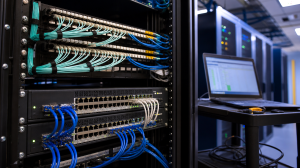
My Ubiquiti UniFi Home Network: Business-Grade Networking at Home
 Tech Guru
Design summary: this home uses a UXG Pro gateway, Cloud Key Plus controller, separate switching and three wired U6 Pro access points. The priorities are VLAN separation, managed wired access, two WAN paths and recoverable configuration. Use it as a topology example, not a universal equipment recommendation: maintaining the policy, backups and staged updates is part of the design.
I wanted a home network that behaved more like small-business infrastructure: segmented, visible, resilient, wired where it matters, wireless where it makes sense, and flexible enough to support a growing homelab without turning the house into a science project. That is why I built the network around Ubiquiti UniFi.
The separate gateway, controller, switches and access points give each part of this build a defined role. The following inventory shows those roles, the paths between them and the policy decisions that still require maintenance.
Privacy note: This article uses sanitized topology and example VLAN details. It intentionally avoids real hostnames, public IP addresses, internal subnets, private IP addressing, passwords, device credentials, and screenshots that would expose the live network.
Quick terms before the details: VLAN means a logical network segment, PoE means Power over Ethernet, WAN is the internet side, LAN is the internal side, VPN is remote access through an authenticated tunnel, and UCKP / Cloud Key Plus is the UniFi controller appliance in this build.
Topology at a Glance
- Two-story house with roughly 4,000 square feet of coverage.
- Three UniFi U6 Pro access points for Wi-Fi 6 coverage with wired backhaul.
- UXG Pro gateway for routing, firewall, WAN failover, and network edge policy.
- UCKP / Cloud Key Plus controller for the UniFi management plane.
- USW Pro 48 as the main switching foundation.
- Additional UniFi PoE switches and Flex Mini switches throughout the house.
- CAT6 wired access in most rooms, with fiber/GPON elements in the broader homelab design.
- The primary internet connection is 2 Gbps symmetrical, with a 1 Gbps symmetrical backup connection.
- Separate networks for management, trusted data, servers, kids, IoT, guests, and future cameras / NVR use.
- VPN-first remote access, very limited port forwarding, and UPnP disabled unless a narrow exception is documented.
Who This Build Is For
This design makes sense if your home network is also the foundation for work, media, automation, security, learning, and homelab projects. It is especially useful when you have wired rooms, multiple access points, servers, smart-home devices, guest devices, kids’ devices, and enough internet dependency that a single flat Wi-Fi network feels too limiting.
A design with multiple switches, access points, VLANs and a separate controller requires ongoing ownership. Decide who will maintain device inventory, firewall exceptions, firmware, backups and recovery before adopting a similar layout. The number of components should follow the household's requirements.
Current UniFi Hardware
The table uses generic role names instead of private device names. It distinguishes the gateway and controller from the core, distribution, PoE and room switches, then lists the wireless access layer.
| Generic Name | Model | Network Role | Design Notes |
|---|---|---|---|
| Main Router / Security Appliance | UXG Pro | Gateway, firewall, VLAN routing, dual-WAN edge | The routed boundary between ISP handoffs and internal networks. |
| UniFi Controller | UCKP / Cloud Key Plus | Controller and management plane | Adoption, backups, topology, alerts, firmware, and device configuration. |
| Main Core Switch | USW Pro 48 | Core switching foundation | High-density switch where distribution, servers, rooms, and access layers aggregate. |
| Server PoE Switch | USW Lite 16 PoE | Infrastructure and server-area PoE switching | Useful for APs, small infrastructure devices, cameras, or lab gear near the server area. |
| Upstairs PoE Switch | USW 24 PoE | Upstairs distribution switching | Provides wired access and AP/camera PoE capacity upstairs. |
| Downstairs PoE Switch | US 8 60W | Downstairs edge/distribution switching | Small PoE-capable edge switch for localized wired and AP needs. |
| Room Edge Switches | USW Flex Mini | Compact wired access | Adds wired ports where media, office, gaming, or bedroom devices actually live. |
| Wi-Fi 6 Access Points | Three U6 Pro APs | Wireless access layer | Wi-Fi 6 access points with 1 GbE uplinks and wired backhaul for planned coverage across two stories. |
What Each UniFi Component Does
| Term | Plain-English Meaning | Why It Matters |
|---|---|---|
| Gateway | The routed edge of the network. | Creates VLAN gateways, applies firewall policy, and decides how traffic reaches the internet. |
| Controller | The UniFi management system. | Adopts devices, stores configuration, shows topology, runs backups, and coordinates updates. |
| Switch | The wired network fabric. | Carries VLANs, powers PoE devices, connects rooms, servers, APs, and uplinks. |
| PoE | Power over Ethernet. | Lets APs, cameras, and some small switches receive power through the network cable. |
| Access Point | A dedicated Wi-Fi radio bridge into the wired network. | Lets Wi-Fi be designed around placement and coverage instead of router location. |
| VLAN | A logical network segment on shared switching. | Separates trust zones for management, servers, IoT, guests, and kids’ devices. |
| SSID | The Wi-Fi network name clients join. | Maps wireless users/devices into the right VLAN and policy zone. |
| WAN | The internet side of the gateway. | Primary and backup providers connect here. |
| LAN | The internal side of the gateway. | Your wired, wireless, server, and IoT networks live here. |
| CAT6 | Structured copper cabling. | Still the best foundation for stable APs, TVs, desktops, consoles, servers, and lab gear. |
| Fiber / GPON | Optical transport options inside or into the home network. | Useful for longer runs, high-speed links, and lab experimentation, but deserves its own focused post. |
Build Order: How I Think About the Stack
The easiest way to make a UniFi home network confusing is to configure everything at once. I prefer a staged build order where each layer is stable before the next one depends on it.
- Bring up a simple management path and the Cloud Key/controller so it can own the build.
- Connect ISP handoffs, adopt/configure the gateway, and validate basic WAN behavior.
- Install the core switch and establish the main uplink paths.
- Add distribution and room switches, then label ports and document locations.
- Mount and wire access points with Ethernet backhaul before tuning Wi-Fi.
- Create VLANs and SSIDs with conservative firewall policy.
- Move devices into the right networks in batches instead of all at once.
- Test dual-WAN failover, Wi-Fi roaming, wired throughput, DNS, DHCP, and VPN access.
- Only then add more advanced exceptions such as casting, Home Assistant, cameras, or lab services.
Physical and Logical Paths
The house is about 4,000 square feet across two stories, so wireless design matters, but the network is not designed as a Wi-Fi-only system. The gateway is the gateway. Switches handle the wired fabric. Access points handle wireless coverage. The controller manages the environment. Servers and lab devices live in their own policy area. That separation is what makes the network understandable.
On the wired side, most rooms have CAT6 access. That is still one of the best decisions you can make in a home network. Wi-Fi is excellent now, but anything that benefits from stability should be wired when practical: desktops, servers, TVs, streaming devices, game systems, access points, cameras, and lab gear.
Each ISP handoff connects separately to the UXG Pro; WAN 1 does not feed through WAN 2 despite their left-to-right placement in the overview diagram. From the gateway, the internal path runs through the switching core to distribution switches, access points, rooms and servers. Keep a port-by-port record alongside the logical VLAN diagram.
The port profiles are just as important as the cable path. AP uplinks need a native management network plus the tagged VLANs used by each SSID. Switch uplinks should carry only the VLANs they need. Most client ports should support one device type, one network, and one purpose.
Wi-Fi Design for a Two-Story House
I use three U6 Pro access points because I want planned coverage, not one router shouting from a bad location. The APs are wired back to the network, which means wireless clients do not pay the performance penalty of wireless mesh backhaul.
Coverage numbers are not additive. Three APs do not automatically equal three times the coverage, because walls, placement, noise, client radios, channel plan, and transmit power all matter. The U6 Pro is a Wi-Fi 6 access point with a 1 GbE uplink, not a Wi-Fi 6E or Wi-Fi 7 AP, so the design goal is reliable planned coverage rather than chasing the newest radio standard.
The goal is not to run every AP at maximum power. Too much transmit power can make roaming worse because clients hang on to a distant AP longer than they should. A better approach is to place APs well, start with reasonable power, use non-overlapping channels, and tune based on real client behavior. For 2.4 GHz, I prefer narrow channels and conservative power because IoT devices often live there and the band is crowded. For 5 GHz, the right channel width depends on interference, client mix, and speed goals.
| Wireless Design Area | Practical Approach | Why It Matters |
|---|---|---|
| AP placement | One downstairs and two upstairs in locations that spread coverage without excessive overlap. | Coverage and roaming are mostly placement problems before they are settings problems. |
| Backhaul | Wire APs back to the switching fabric. | Keeps AP capacity available for clients instead of AP-to-AP uplinks. |
| SSID count | Keep SSIDs purposeful: trusted, kids, IoT, and guest; use an admin-only SSID only when there is a clear need. | Too many SSIDs increase management overhead and airtime overhead. |
| 2.4 GHz | Use for IoT and range-sensitive devices; keep channels narrow. | Compatibility matters more than peak speed here. |
| 5 GHz | Use for phones, laptops, streaming, and higher-throughput clients. | Better performance and less interference than 2.4 GHz in many homes. |
| Roaming | Tune power and placement before blaming clients. | Clients decide when to roam; the network can only influence that decision. |
Dual WAN for Speed and Resilience
The WAN side is built for both performance and backup. My primary connection is 2 Gbps symmetrical, and the backup connection is 1 Gbps symmetrical. For a normal home, that may sound excessive. For a tech-heavy home, it makes sense. Work devices, cloud backups, streaming, servers, game downloads, updates, phones, tablets, TVs, IoT, and lab systems all quietly depend on the internet every day.
The important design decision is what dual WAN is supposed to do. In my mind, the baseline is resilience first: primary WAN for normal traffic, backup WAN when the primary fails. Load balancing and policy routing can be useful, but they should be deliberate. They can also make troubleshooting harder if different flows exit different providers without a clear reason.
Dual WAN is not the same thing as bonding. New sessions should continue through the backup provider during failover, but active calls, VPN tunnels, game sessions, uploads, and long-lived TCP or UDP flows may reconnect. If inbound services or VPN endpoints depend on a public IP, check static IP, DDNS, CGNAT, and double-NAT behavior for both providers before assuming failover will be seamless.
The 2 Gbps circuit also has to be real end to end. The ONT handoff, UXG Pro WAN/LAN ports, SFP+ or RJ45 modules, core uplink, IDS/IPS settings, Smart Queues, and downstream switch path can all become the actual bottleneck if they are capped at 1 Gbps or configured poorly.
VLAN Segmentation and Trust Zones
The biggest reason this setup feels like a real network is segmentation. I am not putting every device in the house on one flat network. Smart plugs, guest phones, kids’ devices, media boxes, laptops, servers, controllers, cameras, and management interfaces do not deserve the same level of trust.
A VLAN does not automatically make a network safe. A VLAN creates separation; firewall and zone policy decide whether that separation is actually enforced. In UniFi, verify the built-in zone behavior, place specific allow rules above broad deny rules, test both directions, and preserve intentional gateway services such as DHCP, DNS, NTP, router access, and required IPv6 control traffic.
The exact IDs and subnets below are examples, not my live addressing. The model is the important part: separate networks by role, then use firewall policy to allow only the flows that should exist.
| Example Zone | Example VLAN | Typical Devices | Policy Intent |
|---|---|---|---|
| Management | 99 | UniFi devices, controller, gateway/switch/AP management, NAS admin, hypervisor admin | Admin-only access from named admin workstations or VPN users. No reachability from guest, IoT, kids, or WAN. |
| Trusted Data | 10 | Laptops, phones, tablets, trusted desktops | Normal trusted client network with selected access to servers and admin tools. |
| Servers | 20 | Plex, NAS services, lab VMs, internal apps | Reachable only on expected ports from trusted networks. Avoid broad server-to-client access. |
| Kids | 30 | Kids’ laptops, tablets, and consoles | Internet access plus household-approved services, filtering, and schedules if needed. |
| IoT | 40 | Smart TVs, plugs, speakers, thermostats, appliances | Internet and specific local exceptions only. No broad LAN access. |
| Guest | 50 | Visitor phones, temporary devices | Internet only. Block private/internal networks. |
| Cameras / NVR | 60 | Future cameras or recording devices | Cameras talk to the NVR/controller. No general LAN or internet unless required. |
| VPN | Policy zone, not necessarily a VLAN | Admin laptop or phone connecting from outside | Access based on user role, not broad internal access by default. |
Firewall Policy in Plain English
Segmentation only matters if the firewall policy supports it. My preferred model is default-deny between trust zones, then allow the specific traffic that makes the home usable. That means I would rather create a narrow rule for a printer, casting target, Home Assistant integration, or NVR path than give an entire IoT network open access to trusted devices.
Read each row below as the source zone and each column as the destination zone. The examples assume normal stateful return traffic, so an allowed outbound flow does not require a separate broad inbound rule. The matrix is an intent model, not a claim that UniFi defaults already behave this way.
| Source | Internet | Management | Trusted Data | Servers | Kids | IoT | Guest | Cameras / NVR |
|---|---|---|---|---|---|---|---|---|
| Management | Allow | Allow | Allow selected | Allow selected | Deny | Allow selected | Deny | Allow selected |
| Trusted Data | Allow | Allow selected admin access only | Allow | Allow selected services | Allow selected household support | Allow selected discovery/casting traffic | Deny | Allow selected viewing |
| Servers | Allow selected | Deny by default | Deny by default | Allow needed east-west traffic only | Deny by default | Deny by default | Deny | Allow selected if required |
| Kids | Allow filtered | Deny | Deny by default | Deny or allow selected family services | Allow same-zone traffic as needed | Deny by default | Deny | Deny |
| IoT | Allow limited | Deny | Deny by default | Allow Home Assistant/MQTT/DNS/NTP only if needed | Deny | Allow same-zone traffic as needed | Deny | Deny |
| Guest | Allow | Deny | Deny | Deny | Deny | Deny | Client isolation | Deny |
| VPN | Allow | Allow selected by user role | Allow selected | Allow selected | Deny by default | Deny by default | Deny | Allow selected by user role |
That table is intentionally conservative. Real homes need exceptions. The trick is to make exceptions small, named, and documented. If a smart TV needs to talk to a media server, make that rule. If a printer needs to be reachable from trusted devices, make that rule. Do not turn the IoT network into a second trusted network because one device was annoying.
A good rule name should tell you the source group, destination object, protocol/port, logging choice, and purpose. For example: Trusted phones to printer TCP 9100, logged, for household printing. Discovery protocols such as mDNS, SSDP, and casting should be scoped carefully instead of treated as permission for broad multicast or whole-LAN access.
Security Design and What Never Faces the Internet
The remote-administration policy is VPN first, with port forwarding limited to deliberately public services. Ubiquiti's remote-access guide links several VPN options; verify the exact gateway, software release, client and WAN prerequisites for the option you choose. The WireGuard/Teleport labels in the diagrams are alternatives, not a claim that both are configured or supported in every deployment. Test the authenticated tunnel and its allowed destinations separately.
I do not want the internet directly touching the UniFi admin UI, Cloud Key/controller UI, SSH on gateways/switches/APs, NAS admin pages, Proxmox/VMware/TrueNAS dashboards, SMB, RDP/VNC, IP cameras, NVR, Home Assistant admin, MQTT, databases, Kubernetes dashboards, printer admin pages, IPMI/iDRAC/iLO, or random lab services. If a service truly must be public, it should be treated as a public service: strong authentication, TLS-protected access, patching, logs, rate limits, monitoring, and DMZ-style egress restrictions. A reverse proxy helps, but it is not a substitute for hardening the service itself.
IPv6 deserves the same rule. NAT can hide sloppy IPv4 exposure, but IPv6 may give hosts globally reachable addresses. If IPv6 is enabled, use stateful inbound deny per VLAN, keep the required ICMPv6, neighbor discovery, router advertisement, and DHCPv6 behavior intentional, and verify that admin surfaces are not reachable from the public internet over IPv6.
UPnP should stay disabled globally unless there is a narrow, documented reason to enable it. If it is unavoidable, scope it to a low-risk network or device, time-box the need, monitor the mappings, and never enable it on Management, Servers, IoT, or Cameras / NVR networks. Automatic port opening is convenient, but convenience is not the same thing as good exposure management.
DHCP, DNS, and Local Services
DHCP and DNS are not glamorous, but they decide whether the network is pleasant to operate. Infrastructure devices should have static addresses or reservations. Random clients can use normal DHCP. Servers, NAS services, printers, controllers, and AP management addresses should be predictable.
I like using names and reservations for anything I may need to troubleshoot at 11 p.m.: gateway, controller, switches, APs, NAS, hypervisors, media servers, DNS servers, printers, cameras, and NVR systems. Whether DNS is served directly by UniFi, a local resolver, Pi-hole, AdGuard Home, or another internal service, the design should be clear about which service answers DNS for each VLAN and what happens if that resolver is offline.
- Create a per-VLAN checklist for DHCP scope, gateway, DNS servers, NTP, search domain, reservations, and firewall rules to required services.
- Use DHCP reservations for important infrastructure and frequently managed systems.
- Keep local DNS names useful, consistent, and not tied to private information.
- Use DHCP options deliberately, especially for controller discovery, DNS, and specialized services.
- Document any DNS filtering or filtering for the kids’ network so troubleshooting is not guesswork.
- Avoid making IoT devices depend on a DNS path they cannot reach because of overly tight firewall policy.
- Plan resolver redundancy or fallback behavior because a Pi-hole or AdGuard outage can look exactly like the internet is down.
Device Adoption Workflow
Adopting UniFi devices is easy when the management path is simple and maddening when VLANs or firewall rules get in the way. I prefer to adopt new switches and APs from a known-good management path first, then move them into their final port profile and VLAN design after the controller owns them.
- Plug the new device into a trusted/native management path.
- Adopt it in the UniFi controller.
- Update firmware intentionally, not during a family-critical usage window.
- Rename the device with a generic but useful location/role name.
- Assign the right switch port profile, AP profile, and uplink design.
- Confirm it appears correctly in topology and has the expected management IP.
- Test the client VLANs or SSIDs that depend on it.
The practical warning is native VLAN behavior. Adopt switches and APs on an untagged/native management network with working DHCP, then move them to final profiles. AP ports normally need native management plus tagged SSID VLANs; if those tags are missing, clients may associate to Wi-Fi but fail DHCP. Also check PoE budget, STP/loop awareness, and whether all SSID VLANs are present on the AP uplink.
If the controller and device are separated by routed networks, Layer 3 adoption details may matter. DNS for unifi, DHCP option 43, or a manual inform URL can be useful in advanced cases. For a home network, the best path is usually to keep adoption boring and predictable.
Management, Backups, and Restore
The controller is critical infrastructure. If the UCKP / Cloud Key Plus fails, the network may keep forwarding traffic, but configuration, adoption, topology, and easy management become much harder. That makes backups a real part of the network design, not an afterthought.
For this Cloud Key design, follow the System Config backup and restore procedure. Ubiquiti distinguishes that broader OS/application/device configuration backup from the narrower Network-only export used in particular migration and self-hosted cases. Keep an accessible off-device copy and recovery credentials, record the source and target versions, and test the chosen restore path before relying on it. The restore diagram below lists acceptance steps, not observed results.
Also keep a short restore note that explains the order of operations. For a physical service outage, restore power, ISP handoffs, gateway, and core switching first. For a controller replacement or rebuild, restore the backup before re-adopting devices, then verify that devices reconnect cleanly. Your future self will not want to rediscover the recovery path during an outage.
Monitoring and the Single-Pane-of-Glass Experience
One of the best parts of UniFi is being able to see the environment as a system. I can look at the gateway, WAN links, switches, APs, clients, uplinks, ports, device status, topology, and policy from one place. That matters because troubleshooting becomes evidence-based instead of guesswork.
If a device is slow, I can ask better questions: is it wired or wireless, which AP is it on, what VLAN is it in, is the switch port negotiating correctly, are there port errors, did WAN fail over, is DNS slow, is the AP overloaded, or is the client just far away from the best AP?
A single pane of glass is useful, but it should not be the only evidence source. If the controller or WAN is down, visibility can disappear with it. Push, email, webhook, or syslog/SIEM-style alerts are worth considering for WAN failover, admin changes, VPN events, PoE problems, new port forwards, UPnP mappings, and repeated blocked flows.
| Signal | Why I Care | Action When It Looks Wrong |
|---|---|---|
| WAN failover/recovery | Shows provider outages and resilience behavior. | Confirm backup path works and primary returns cleanly. |
| Device offline | Gateway, switch, AP, or controller health issue. | Check power, uplink, PoE, firmware, and physical cabling. |
| Switch port errors | Bad cable, bad negotiation, or failing client link. | Inspect cable, speed/duplex, port profile, and connected device. |
| AP channel utilization | Wi-Fi congestion or bad channel/power plan. | Tune placement, power, channels, or client distribution. |
| New device joined | Useful for visibility and security awareness. | Classify it and move it to the right network if needed. |
| Blocked inter-VLAN attempts | Can reveal broken apps or unwanted movement. | Create a narrow rule only if the flow is legitimate. |
| Admin login/config change | Management-plane accountability. | Review unexpected changes immediately. |
| Firmware status | Security and stability posture. | Schedule staged updates with backups first. |
Updates and Maintenance Windows
Home networks are production networks when people work, stream, attend school, game, or depend on security devices. That means updates deserve a small change-management mindset. I do not want the gateway, controller, switches, and APs all changing at the same time during a workday.
- Back up the controller before controller, gateway, switch, AP, or firewall changes.
- Prefer the official/stable release channel for the family-critical network.
- Read release notes before major updates.
- Disable or schedule auto-updates for family-critical gear so maintenance happens during a controlled window.
- Stage updates: controller first, if needed, then gateway, then switches/APs, verifying between each device class.
- Avoid Early Access firmware on the primary home network unless you are intentionally testing and can recover.
- After updates, verify WAN, VPN, VLANs, DHCP, DNS, Wi-Fi, and critical switch/AP status.
UPS and Power Planning
Power planning is one of the easiest homelab details to ignore until the first outage. If the internet handoff, gateway, controller, core switch, and key PoE switch are not on backup power, the network may fail even if the ISP is still up. If primary and backup internet use separate ONTs or modems in different places, both handoffs need UPS coverage. PoE load also matters because APs and cameras can shorten UPS runtime.
Measure runtime under real PoE load instead of guessing. For NAS, NVR, or server gear, graceful shutdown matters more than simply keeping everything powered until the battery is empty.
Why Not a Consumer Router or Mesh Kit?
Consumer routers and mesh kits can work well for a basic home. If the requirement is simple Wi-Fi, a small number of devices, and minimal policy, those platforms may be enough. This comparison is not aimed at every business-class alternative; it is about the difference between a convenience-first home kit and an infrastructure-style UniFi design.
My requirement was different. I wanted a network platform I could grow into, not one I would outgrow as soon as I wanted better segmentation, better visibility, multiple WAN links, wired APs, switch profiles, firewall rules, and a cleaner homelab foundation.
| Area | Typical Consumer Router or Mesh Setup | My UniFi Approach |
|---|---|---|
| Management | Often managed as a router or mesh app. | Centralized view across gateway, switches, APs, clients, topology, alerts, and policy. |
| Segmentation | Usually limited or simplified. | VLAN-first design for management, data, servers, kids, IoT, guests, VPN, and future cameras. |
| Wired network | Often secondary to Wi-Fi. | CAT6 to most rooms, switches where needed, APs wired back to the network. |
| Wireless | Mesh is often the main design. | Dedicated wired Wi-Fi 6 APs for planned coverage and roaming. |
| Internet resilience | May support failover depending on model. | Dual WAN is part of the design from the start. |
| Security posture | Usually simple allow/deny settings. | Zone model, default-deny intent, VPN-first access, and no exposed admin panels. |
| Operations | Basic device list and app dashboard. | Backups, restore notes, alerts, topology, port status, firmware lifecycle, and logs. |
Compare candidate platforms against the required VLANs, remote access, wired ports, PoE demand, management and recovery process. Those requirements explain this design more clearly than a consumer-versus-enterprise label.
Operational Pitfalls I Watch For
- Adopting devices before restoring the correct controller backup.
- Locking myself out with an over-aggressive management VLAN or firewall rule.
- Forgetting that AP uplinks need the right trunk/native network behavior.
- Using a Flex Mini where full managed-switch features are needed.
- Running out of PoE budget after adding APs, cameras, or edge devices.
- Breaking casting, printers, or smart-home integrations by blocking all discovery traffic instead of allowing narrow exceptions.
- Letting guest devices accidentally reach private subnets.
- Assuming IPv4 NAT behavior protects IPv6 hosts the same way.
- Forgetting double NAT or CGNAT can break inbound services, VPN assumptions, or troubleshooting.
- Letting DFS channel changes surprise clients during radar events or noisy RF conditions.
- Enabling 802.11r, WPA3-only, or aggressive roaming settings before checking older IoT compatibility.
- Allowing AP meshing to hide a bad cable instead of fixing the wired uplink.
- Allowing auto-updates to disrupt work, school, streaming, or security devices.
- Trusting the UniFi topology view as the only documentation.
Operating Priorities
Keep cabling, AP placement, trust zones and outage recovery in the same operating notes. Label ports and document why exceptions exist. If you share the design, sanitize screenshots and exported configuration so the documentation does not disclose live addressing or credentials.
Use the controller view to choose the next check, then compare it with client behavior, port status or logs. A clear topology and VLAN policy help explain a failure; they do not replace tests of allowed and blocked paths.
The third lesson is that a home network still has users. The family does not care that a firewall rule is elegant if casting stops working, games lag, work calls fail, or a firmware update takes down Wi-Fi. The design has to be secure and livable.
What This Does Not Prove
This topology description does not prove that UniFi is faster, safer, or more reliable than another platform, or that the same hardware will cover a different building. The article includes no reproducible throughput measurements, radio survey artifact, failover timing, penetration test, or restore-drill result. Validate coverage with a site survey, test policy from each VLAN, stage updates, confirm backup restoration, and measure WAN failover against the applications your household actually uses.
References
- UniFi Zone-Based Firewalls
- UniFi Remote Access: VPN and Port Forwarding
- UniFi Gateway WireGuard VPN Server
- UniFi Gateway UPnP
- UniFi Updates
- Backups and Migration in UniFi
- UniFi System Logs and SIEM Integration
- UXG Pro Technical Specifications
- U6 Pro Technical Specifications
- NIST SP 800-153: Guidelines for Securing Wireless LANs
Final Thoughts
This build reflects a household with wired rooms, multiple trust zones, servers and two internet connections. Preserve those requirements when adapting the design, but size the ports, PoE, radio layout and power backup for the actual site. The linked VLAN and remote-access guides develop those decisions further.
Before calling a similar build ready, test ordinary household tasks as well as failures: work calls, casting, guest access, VPN administration, WAN loss and recovery from a controller backup.
Related TechGeeks resources
Use these next if you are turning the UniFi home-network design into a purchase or cleanup plan.